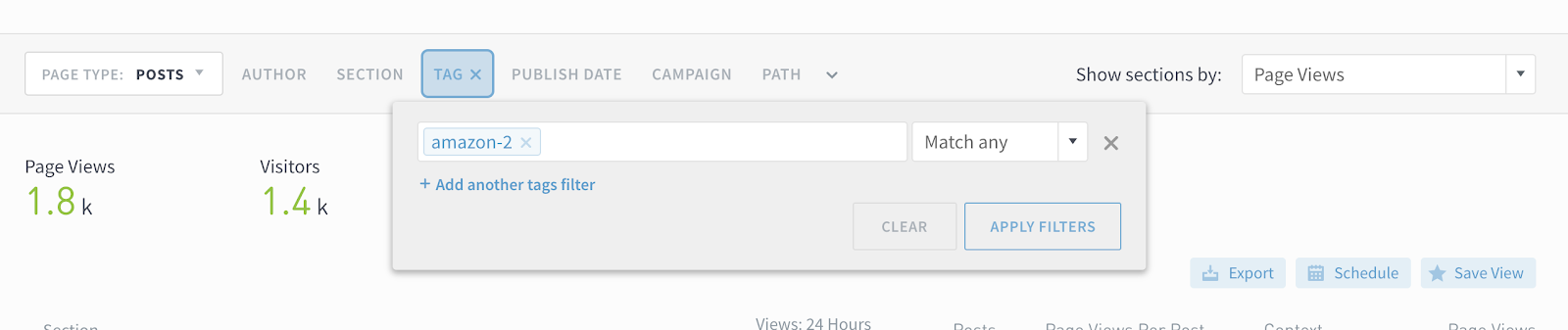
Previously, when you added a bunch of filters, it felt like you had to scroll down for miles to reach your results. Not anymore. We redesigned filters to free up vertical space and allow filtered results to appear “above the fold” for complex queries.
Like before, you can edit filters by clicking on the relevant filter button. Once you’ve selected criteria, click Apply Filters (this part’s new).
Active filters are highlighted in blue:
Click the carat button to see a summary of what filters are applied.
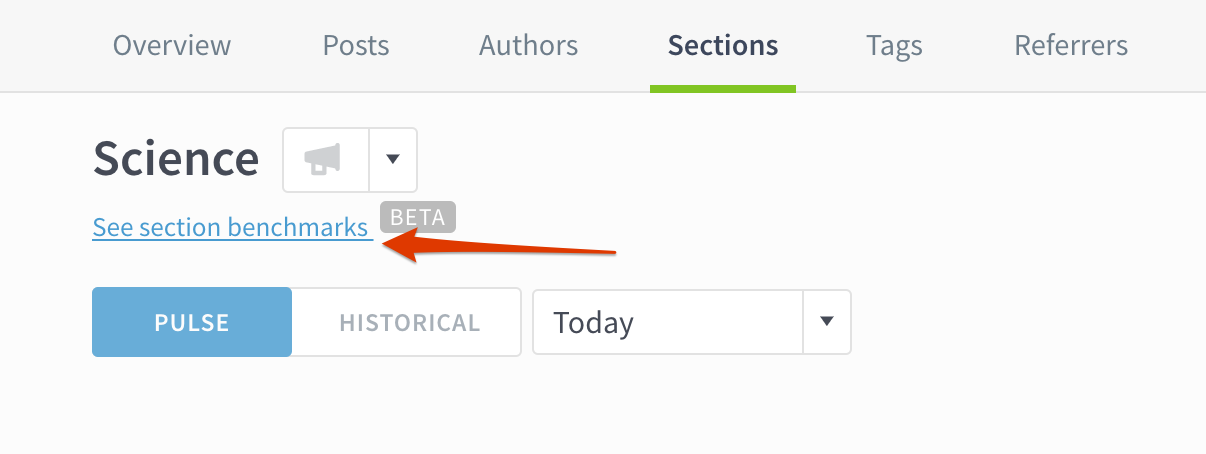
Beta feature: Benchmark authors, sections, and tags
Benchmarks is a new beta feature for comparing performance. It’s for folks who regularly ask questions like “What are the growth opportunities for me or my team?” or “How can we make our content strategy more efficient?”
To begin comparing performance, go to an author, section, or tag details page:
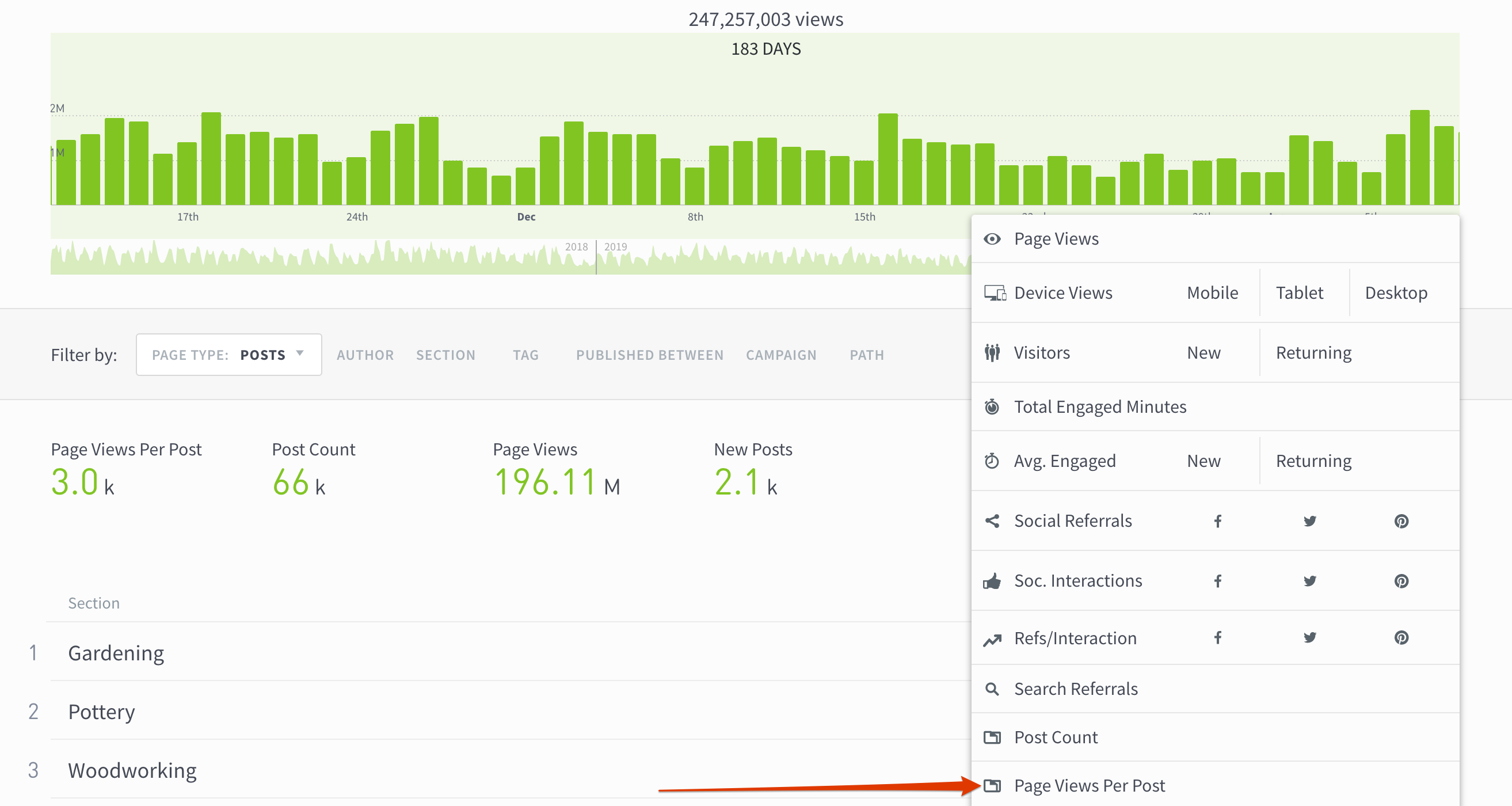
Sort by page views per post
See which authors, sections, and tags are most efficient at getting page views. For instance, sorting by page views per post on a tag listings page might suggest writing more about content topics that have many page views per post, but fewer posts overall.
Audience segments for multiple sites
Now you can segment audiences across all the sites in your network. If you’re using a segment to track “Registered Users” to your help site, blog, and main site in Parse.ly, you can now see”Registered Users” to all three sites from one place. Reach out to your Parse.ly account representative or email us at hello@parsely.com for more info.
Control user access to audience segments
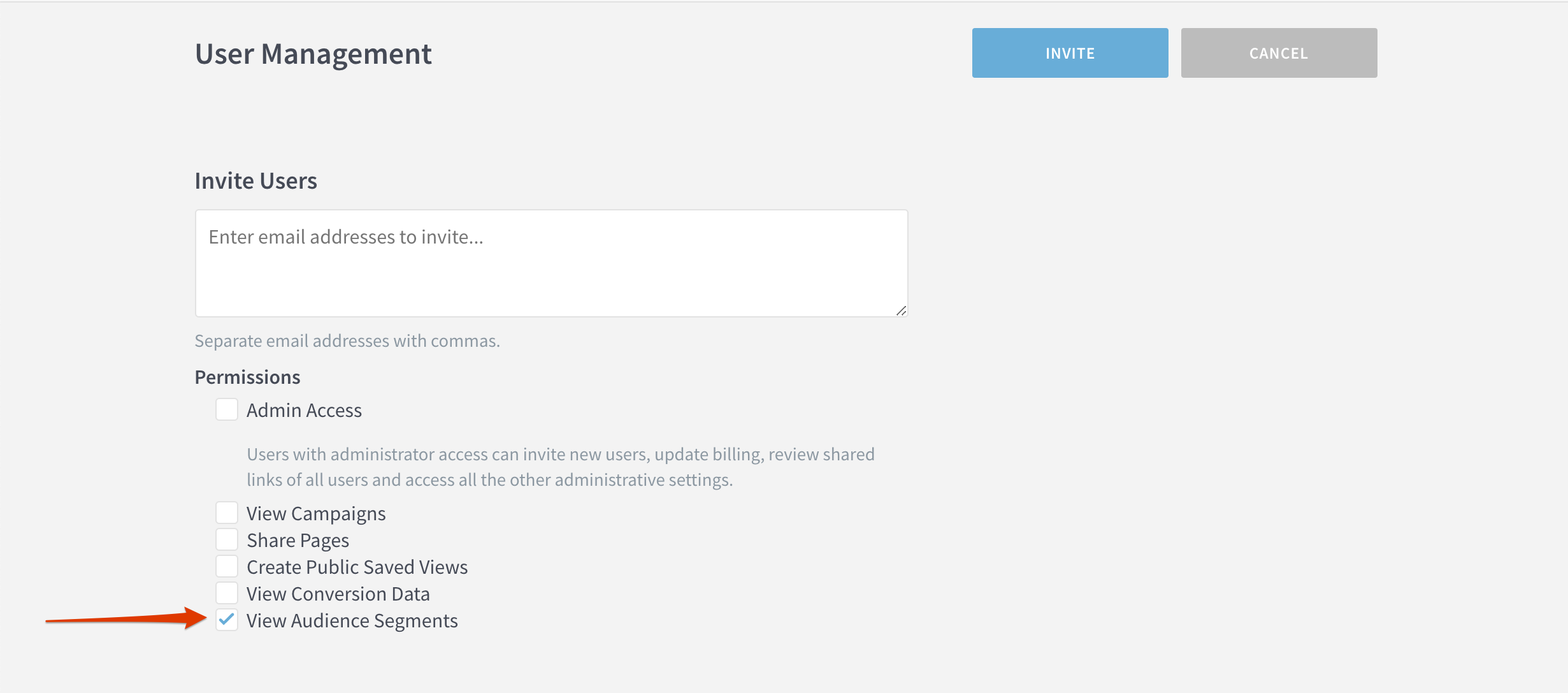
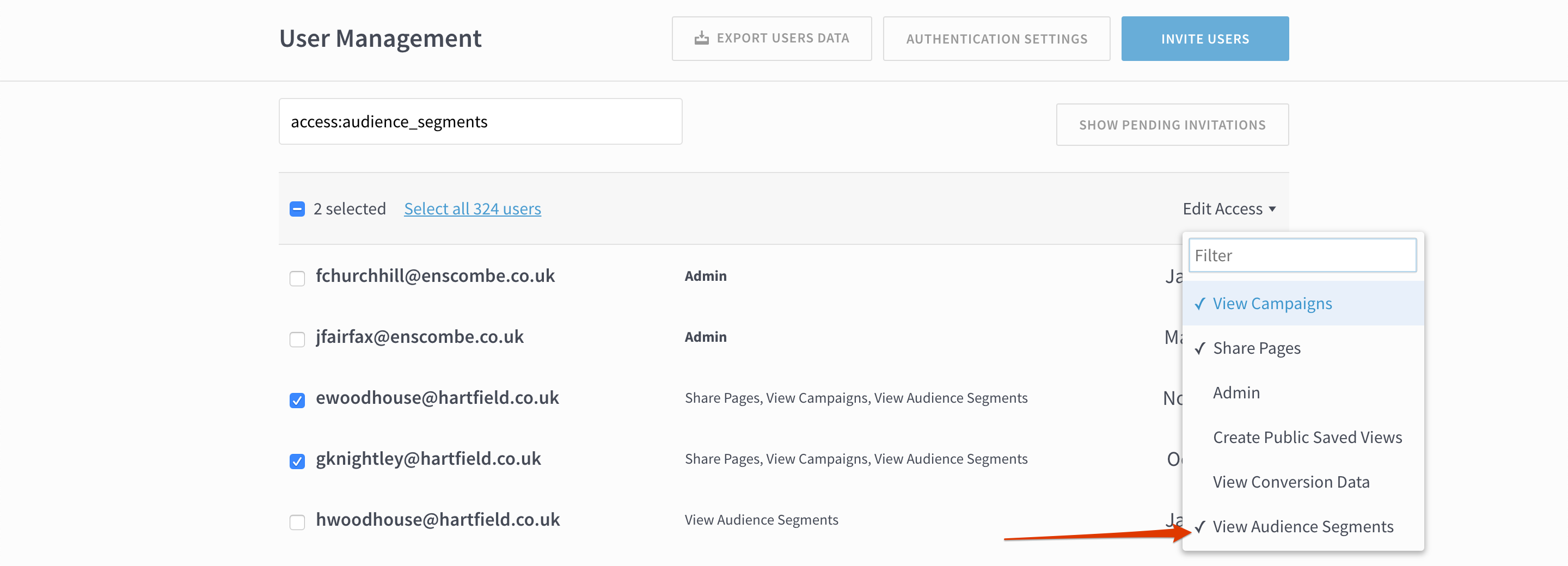
Admins can now control which users have permissions to see audience segments in the Parse.ly dashboard.
When inviting new users from the User Management page, check the “View Audience Segments” box to give them permission to see audience segments.
To give existing users permission, go to the User Management page, select the appropriate users, click Edit Access and select “View Audience Segments.”
We’ve made some in-front-of and behind-the-scenes improvements to Parse.ly’s iOS app. First up, the app now properly displays full screen on iOS devices like iPads and larger iPhones. Secondly, we now use AutoFill on iOS for easy integration with any password manager you have installed on your Apple device.
If you have Automatic Updates enabled (we’d recommend this), there’s nothing for you to do. Otherwise, you can get the latest update from the App Store.
Show site name on big screen displays
Do you operate multiple sites and want to display their stats on a big screen around the office? Now you can choose to display the site name in the fullscreen version of Overview.
From the Overview page, click to expand the window (the arrows on the right side, to the right of the gear icon).
Click the gear icon.
Under Metrics and Graph, click Today.
Check the box next to Site Name.
We also made fullscreen Overview more responsive to your screen size; the text should bigger and easier-to-read from far away.
Better keyboard navigation for accessibility devices
If you use an accessibility device, you can now use keyboard commands to navigate through the dashboard.
Type TAB to navigate to most elements, like buttons or links
Parse.ly distinguishes between webpages that contain a singular piece of content (referred to as “posts”), and those that don’t (homepages, index pages, section pages, photo galleries, etc, which are referred to as “non-post pages”). If you send metadata for non-post pages (such as a thumbnail image, title, author, section, or tags), they will now show up on the details page, like this:
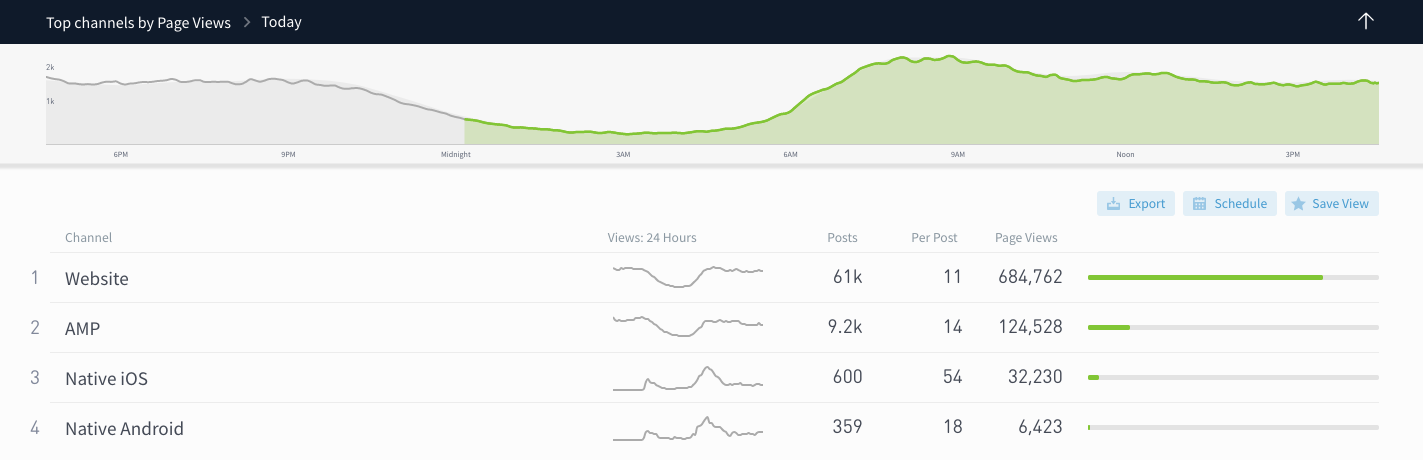
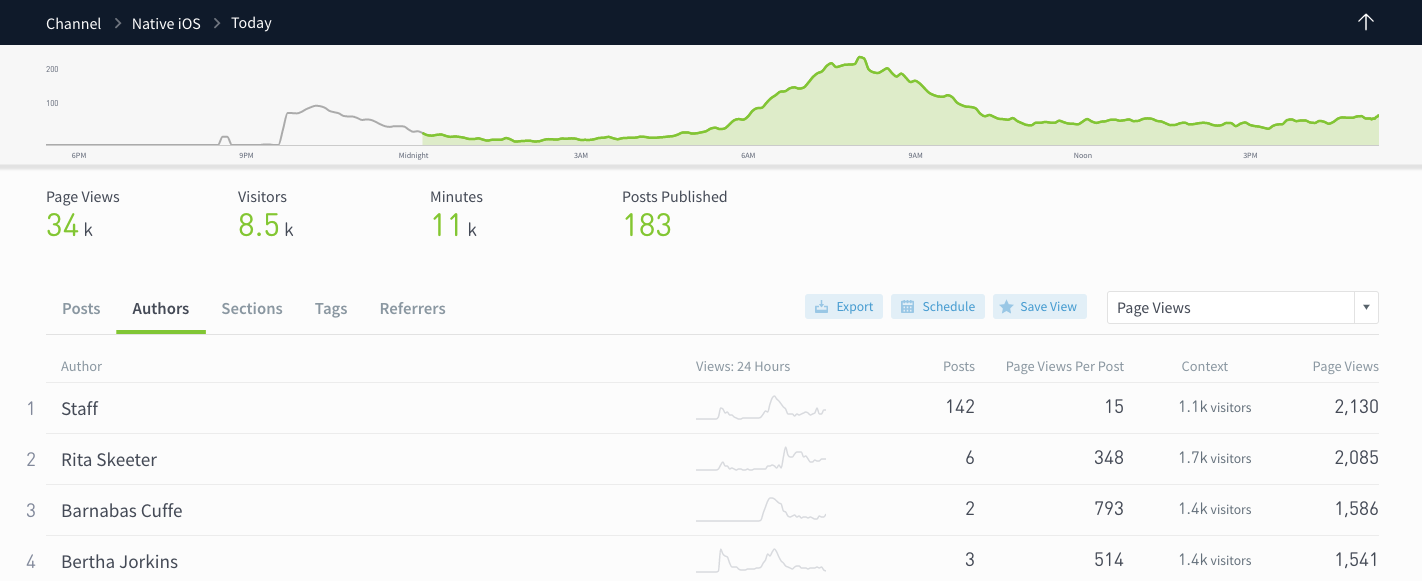
It’s Parse.ly’s mission to help you understand your audience no matter where your content lives. You can now easily see what content gets the most engagement on your native iOS and Android apps.
On the Channels page, compare native iOS and Android traffic to other channels to get an idea of where your audience is distributed.
Clicking on Native iOS or Native Android takes you to a details page for the specific channel, where you can drill down into what posts, authors, sections, and tags resonate most with your mobile app users.
A few notes for customers who already have integrated Parse.ly’s iOS and Android SDKs:
Your app traffic should show up on the Channels page automatically. You will see data populated in these channels from November 12, 2019 moving forward.
Did you know our SDKs support engaged time tracking? If engaged minutes are showing as 0, be sure to upgrade to the latest Parse.ly SDK.
If you haven’t yet set up app tracking in Parse.ly, learn more about how to get started by emailing us.
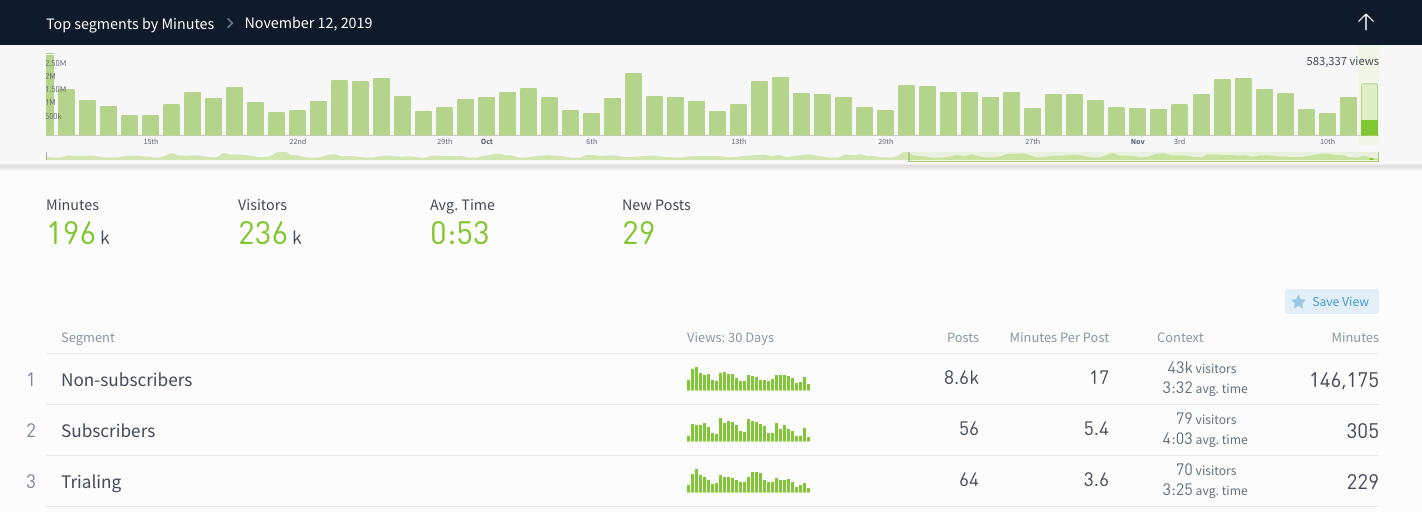
Compare audience segments
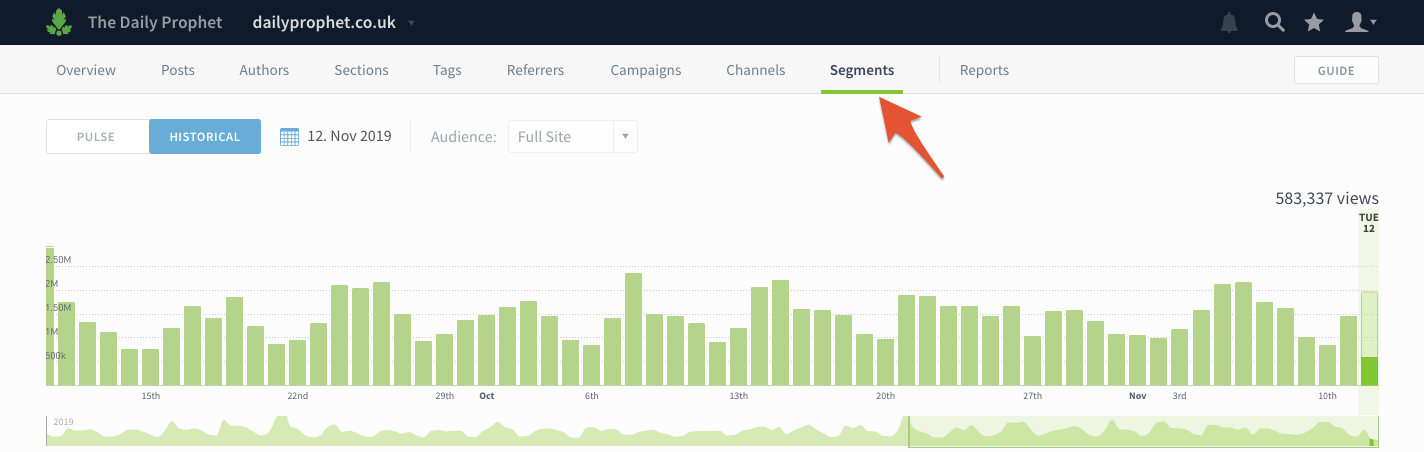
We’ve given audience segments a home, under their very own tab.
You can now easily compare how traffic for segments varies without clicking back and forth between filtered views.
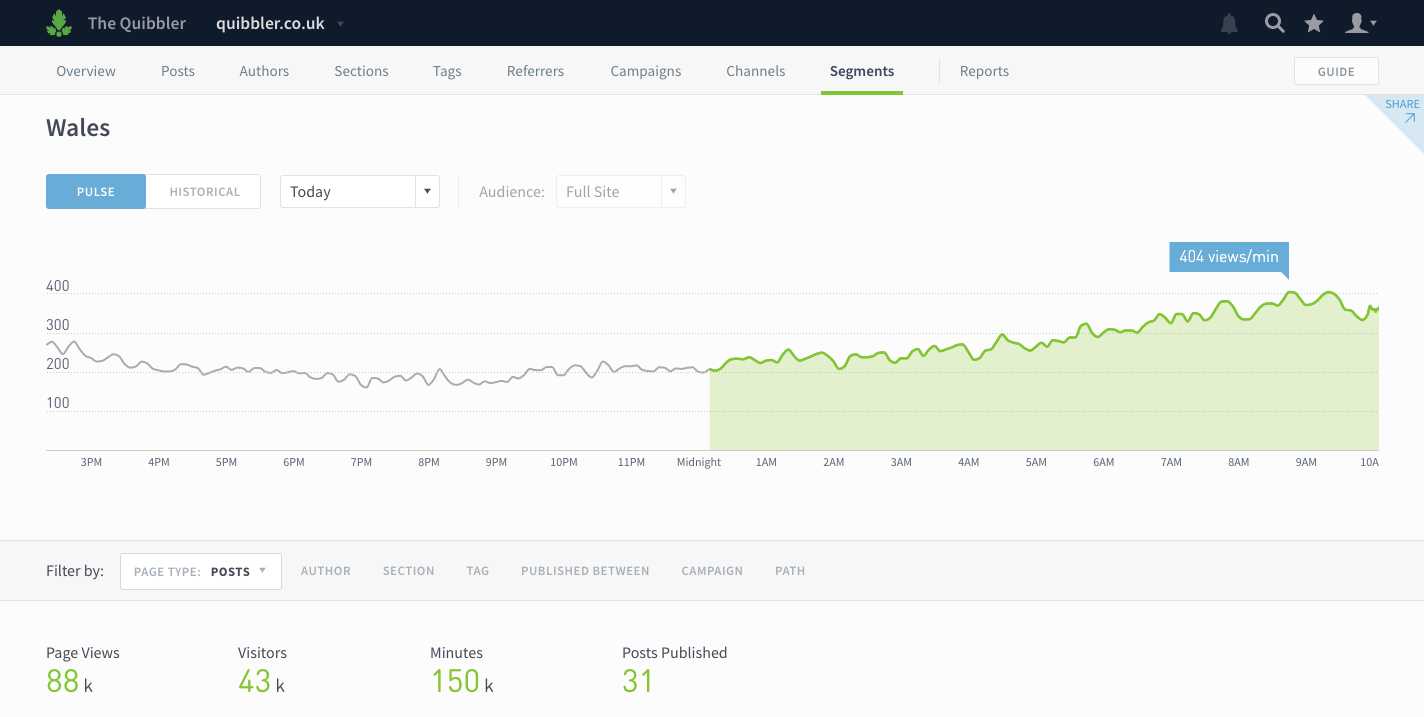
Click on a segment to see a details page with breakdowns of the most popular posts, sections, referrers, etc.
You can learn more about audience segments in this help doc.
Don’t have any segments set up? Send us an email to learn how you can use Parse.ly to segment by user type and geography.
Identify older posts doing well now
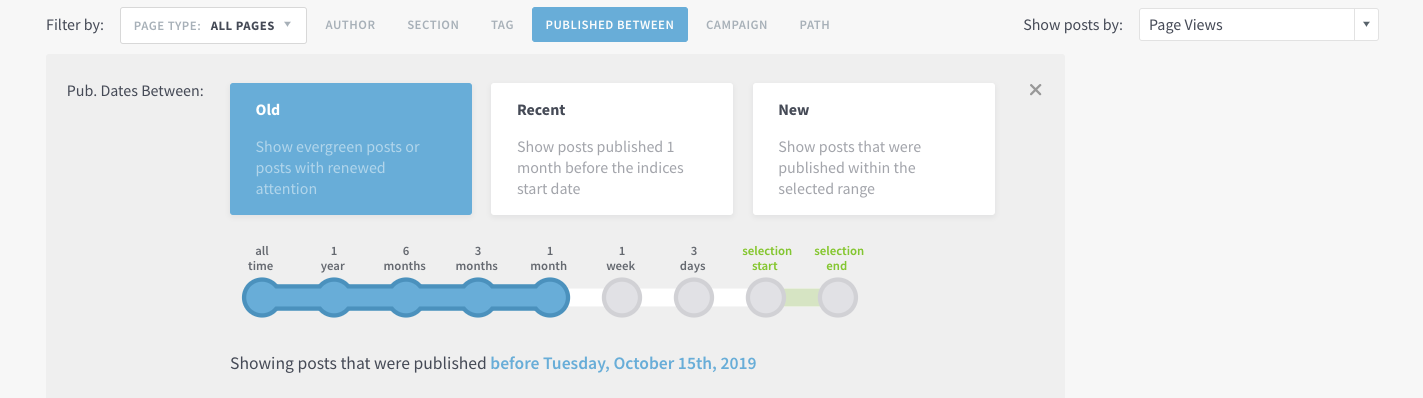
Your archive has heavy-hitters in it; you just have to find them. Answer questions like “What posts published more than 6 months ago are still bringing in traffic?” using the updated Published Between filter.
Click the Published Between filter and then click and drag to select the publish date range. You can also choose from preset options to answer these questions:
We hope this change will make it easier for you to find those hidden gems in your archive that have the potential to become evergreen mainstays. Tip: use this filter while looking at top posts referred by Google to identify steady sources of SEO.
Filter by Page Type
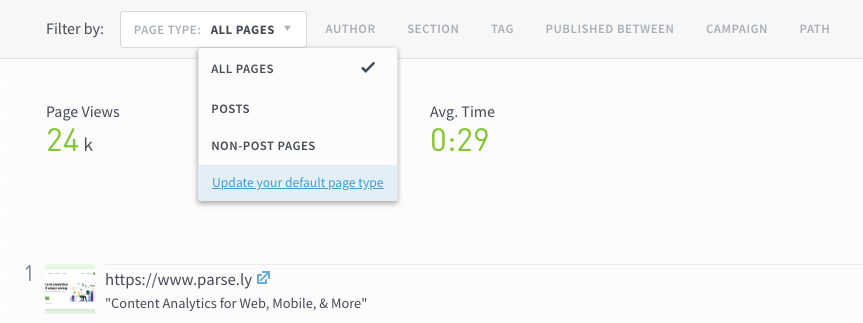
We’ve updated the look of one filter to make it clearer what page types you’re seeing. Selecting All Pages or Non-post Pages will reveal pages not classified as posts, like homepages, index pages, and product pages. Admins can choose their organization’s default page type on the Preferences page.
Parse.ly now offers the option to automate conversions reporting. Ensure your boss and colleagues know the impact your content is making, every week in an email. When someone asks, “What is this content doing for the business?”—you’ll have answer. And you’ll get back the hours you might spend combining conversions data from separate spreadsheets!
The conversions report shows
• content that converts the most readers • content that assists the most conversions • the types of conversions your content drives best
This feature is available at an additional cost. If you’re eager to get started, please reach out to your account rep or email hello@parsely.com to discuss possibilities and pricing. Or check out the announcement to learn more on your own first!
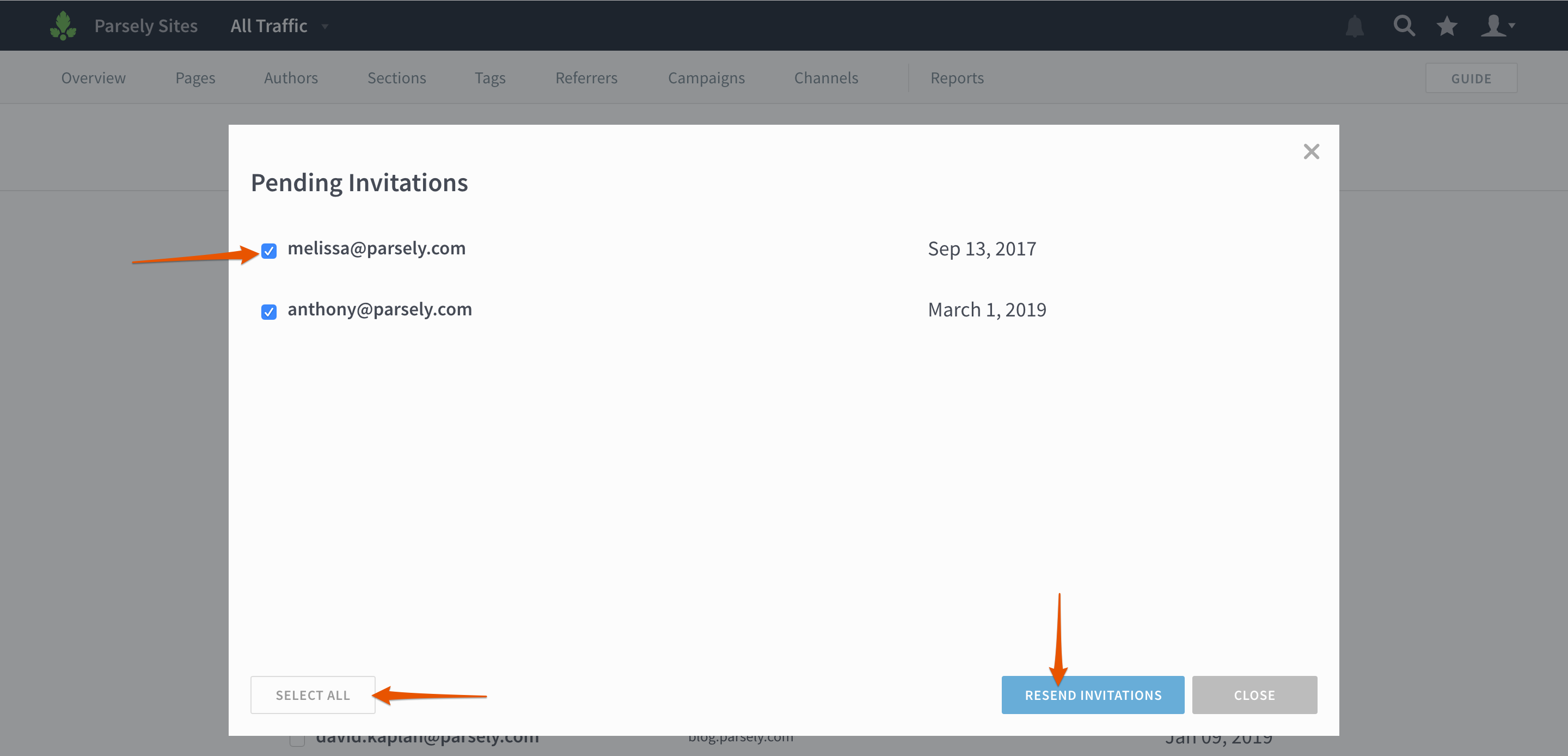
Now admins can easily see which users haven’t accepted their invitation to create a Parse.ly account and give them a friendly reminder.
On the Users page, click Showing Pending Invitations. (If there are no pending invitations, this button won’t appear!)
You’ll then see a list of pending invitations. Check the boxes next to individual users or click Select All to bulk invite. Click Resend Invitations, and you’re done!
Network users
Network admins can now create “network users.” This is useful if you operate a large network of sites and want to grant users access to all current and future sites.
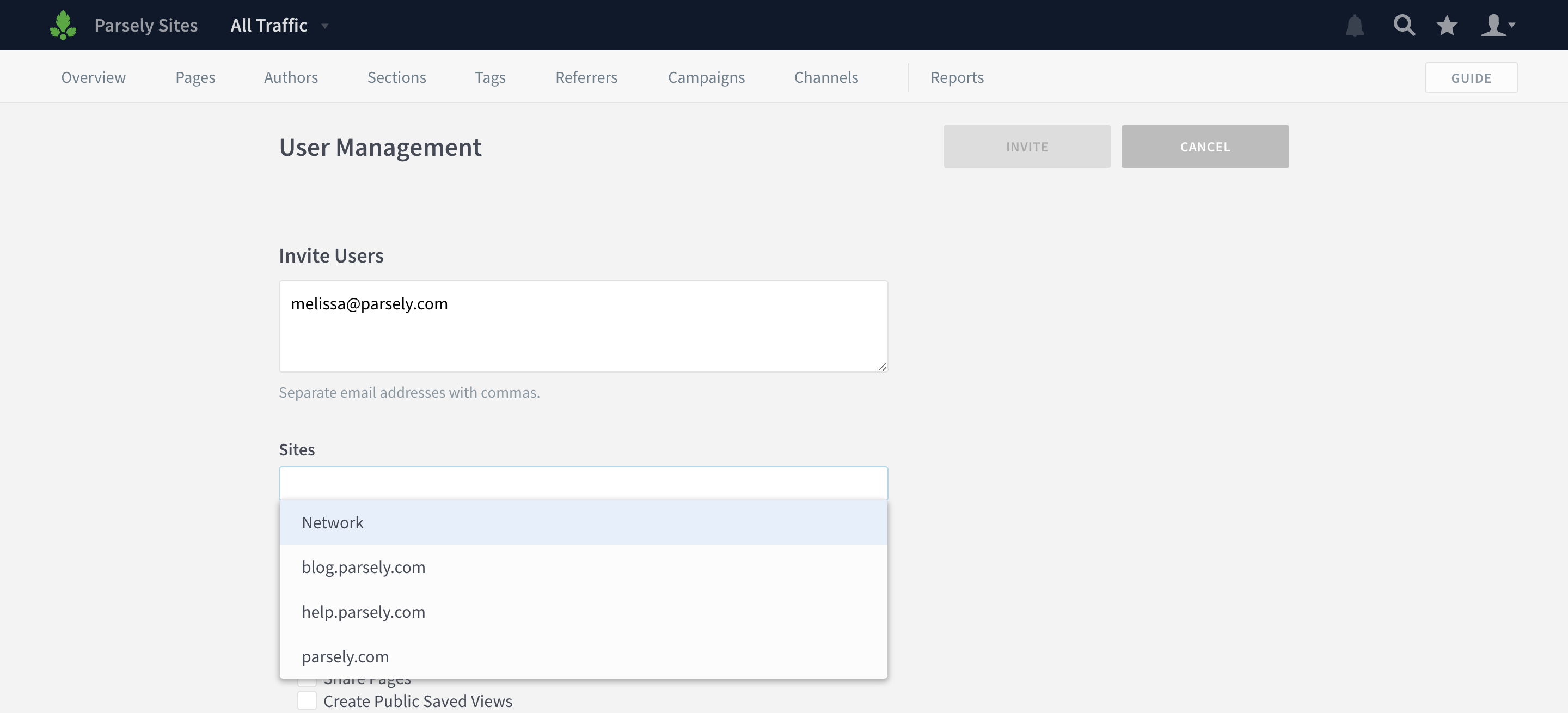
From the network-level Users page (tip: if you see “All Traffic” in the top left corner, you’re on the network level), click Invite Users.
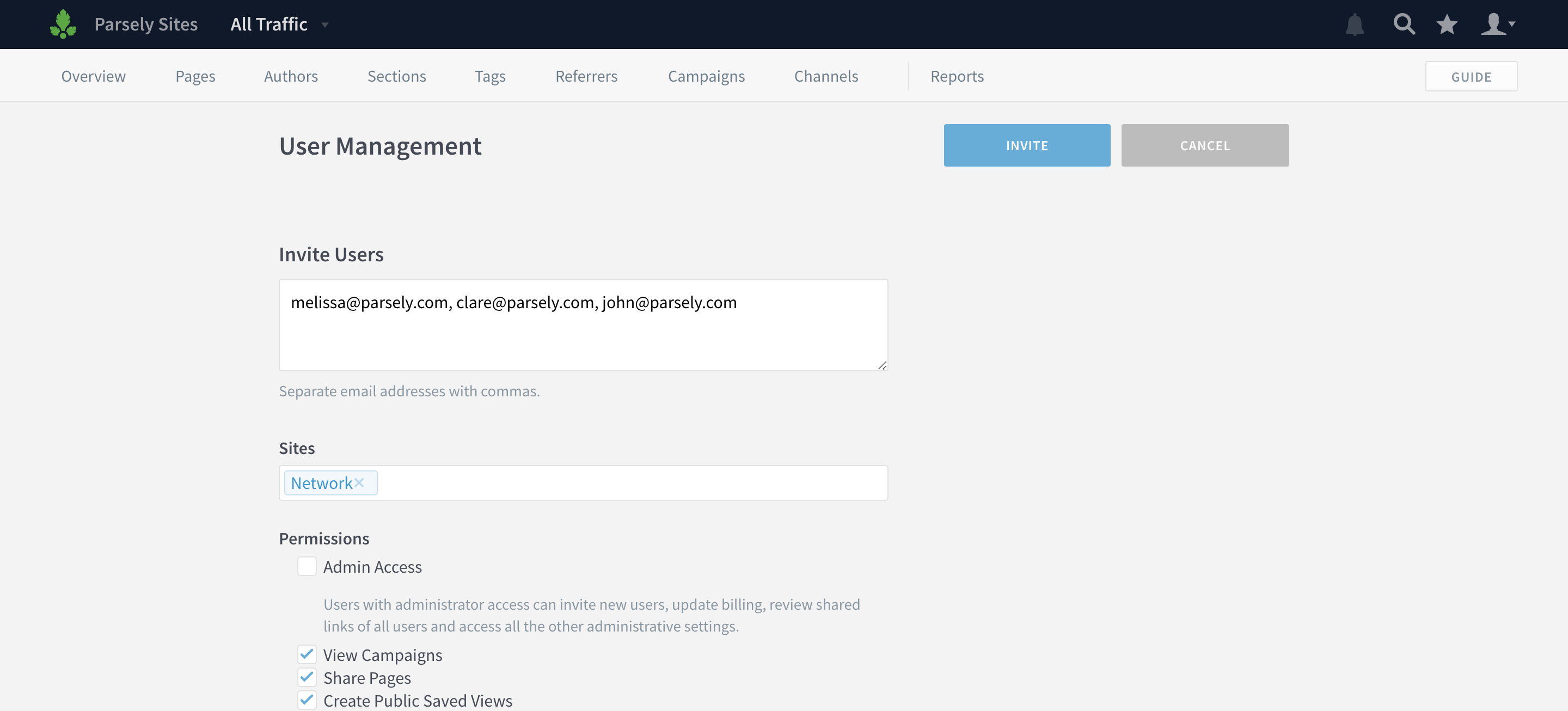
Type in a list of user email addresses and select Network from the Sites dropdown.
You can create multiple network users at once, and assign them specific permissions on the network-level. Click Invite when you’re finished.
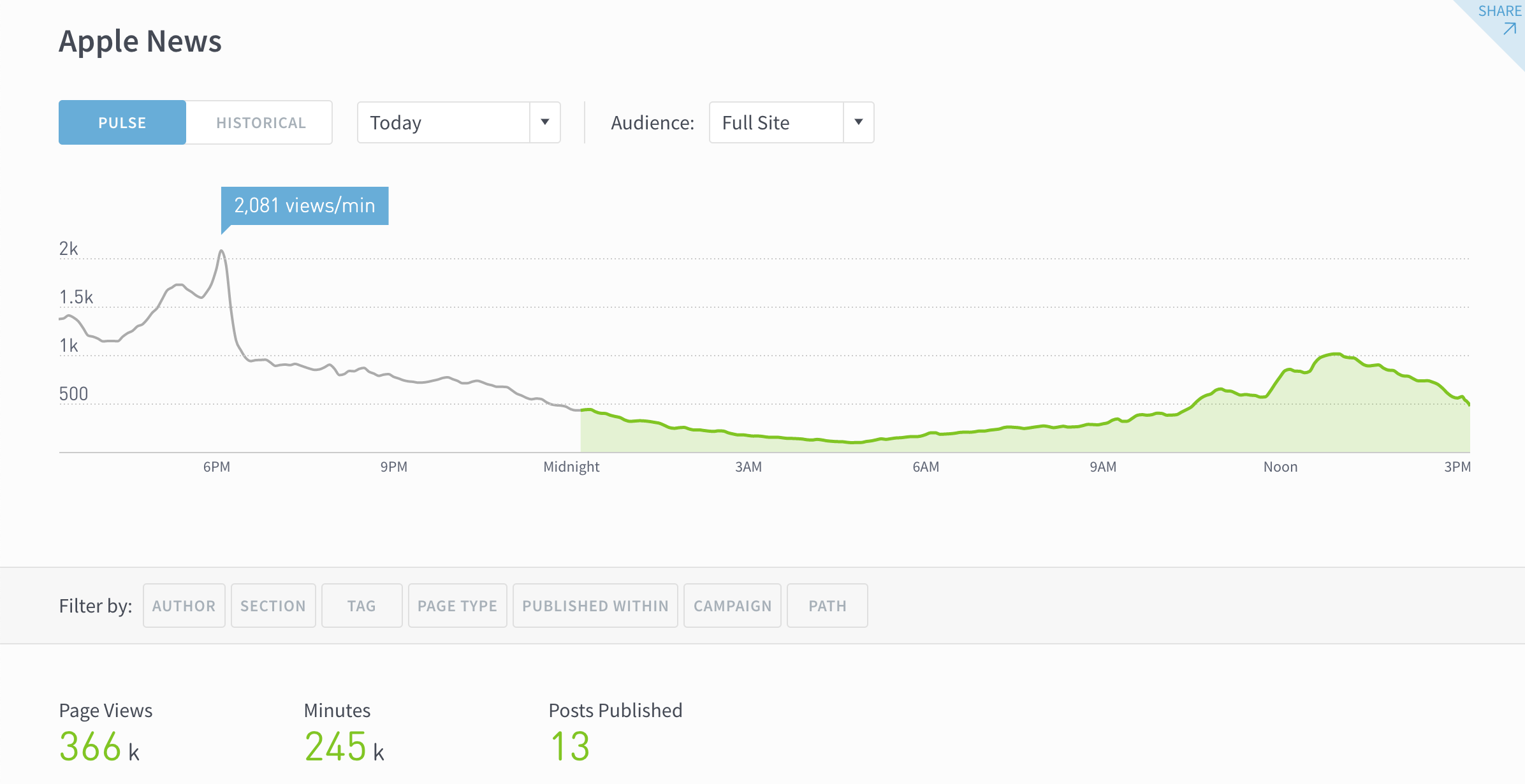
Parse.ly now supports Apple News analytics, including real-time and historical
Page Views
Total Engaged Minutes
Avg. Engaged Minutes
Apple News analytics are available at an additional cost to Parse.ly Enterprise customers. Reach out to your account rep or fill out the form in this product announcement to learn more about pricing.
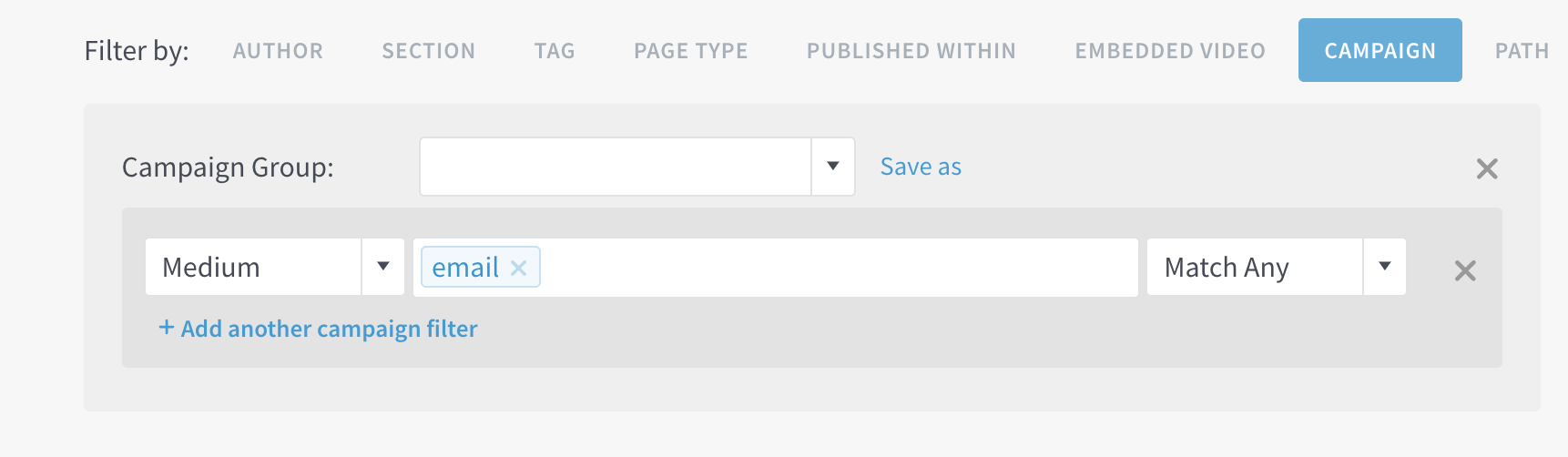
You can now filter by individual campaign parameters (e.g. campaign, medium, source etc.) on any listings page. Click “Save as” to create a new Campaign Group or update an existing one on the fly!
Click Show individual campaign fields. (Or pick an existing Campaign Group.)
Add fields.
If you want to save or update the group, click Save as.
You’ll then be prompted to update or name your new Campaign Group.
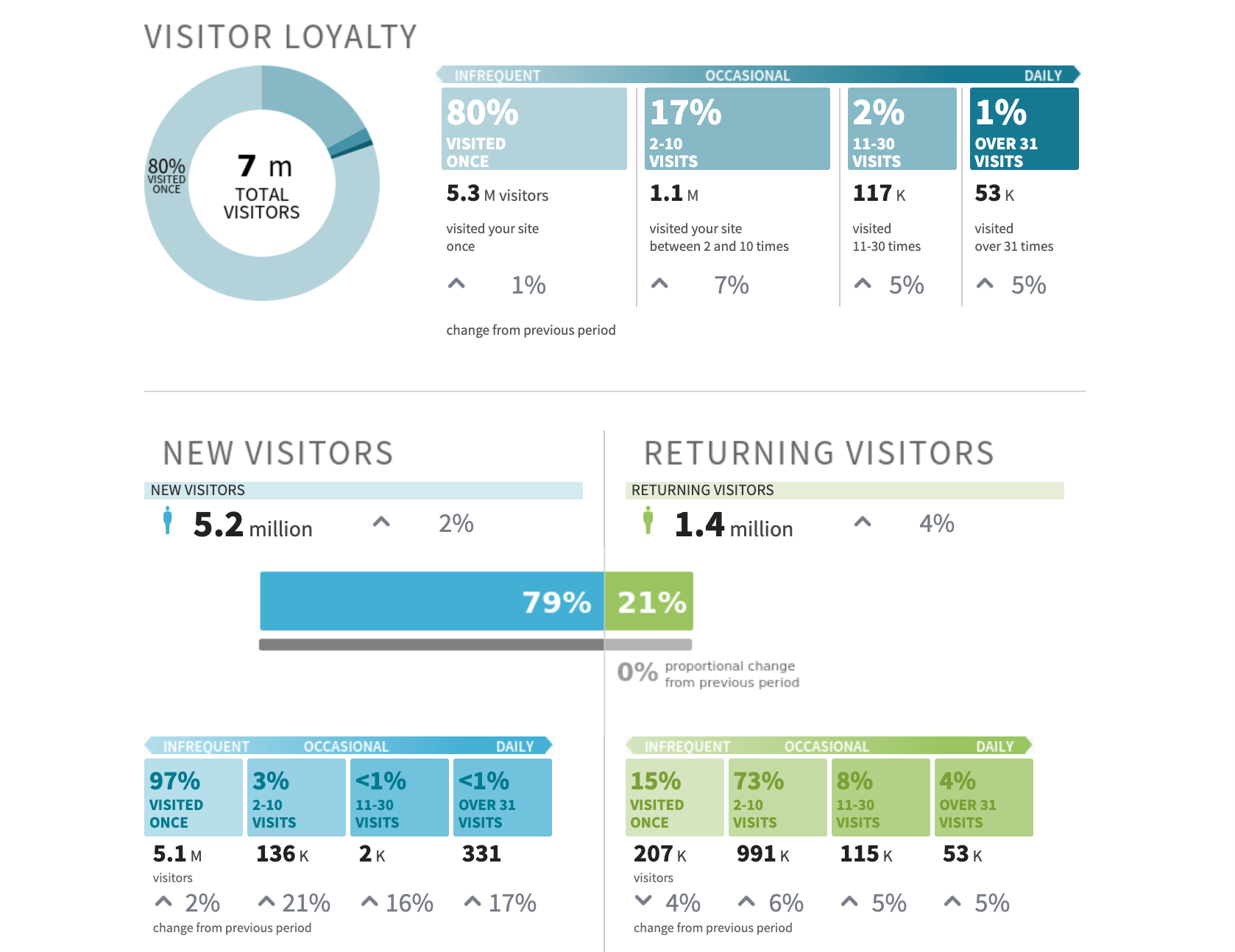
Audience Overview report
On September 4th, all Parse.ly Enterprise customers can run a report to get a better understanding of loyalty and visitor behavior for August 2019. Schedule this report to run monthly to receive it automatically in future months! (You can find it in the reporting suite under Advanced.)
PDF reports
There’s a reason the PDF has been around since 1993. It’s easy to save, store, and forward to your colleagues. And now you can do that with your Parse.ly reports!
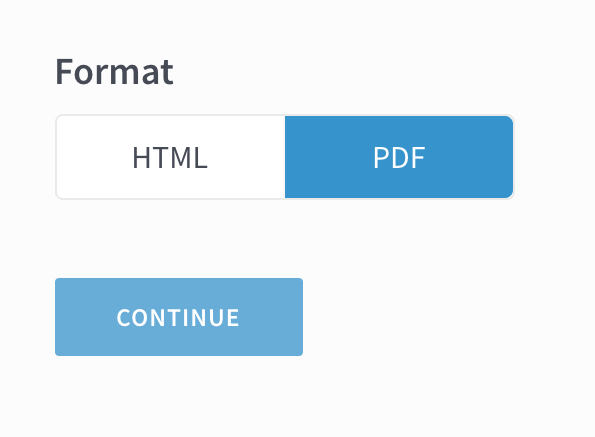
All you need to do is select PDF as the format when you create a report:
Export a spreadsheet of Parse.ly users
Need to get a better understanding of your organization’s Parse.ly usage? Admins can now export a list of Parse.ly users from the Users page.
Click the account dropdown on the right.
Click Users.
Click Export user data.
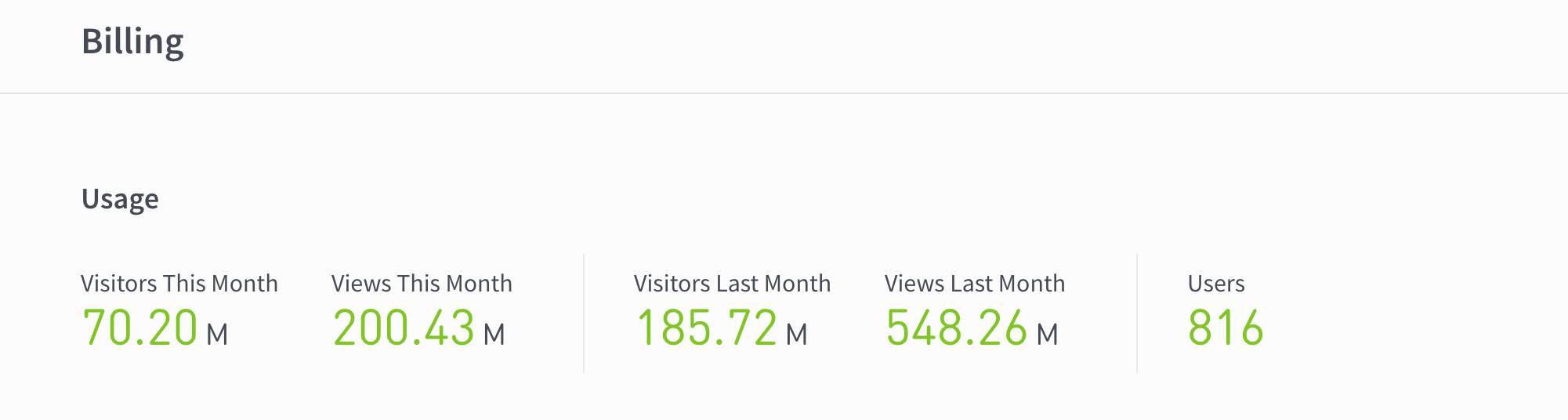
Check your organization’s Parse.ly usage
On the Billing page, admins can now see the visitors and page views for this month and the last month, as well as total users.
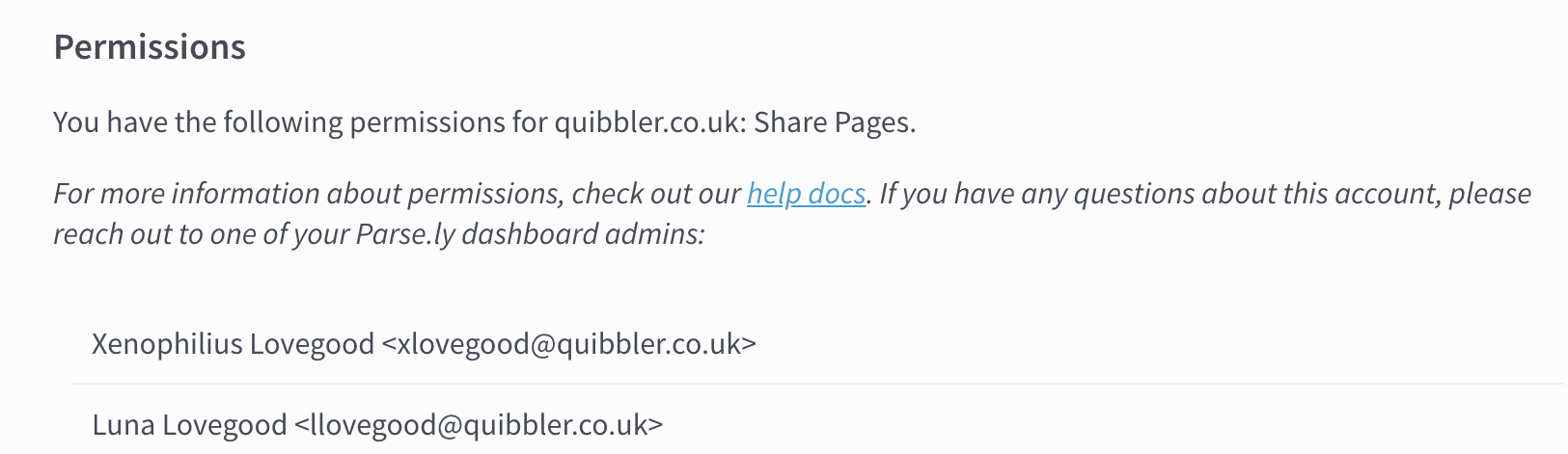
For those who have ever had a question about Parse.ly but but weren’t sure who to ask, this update is for you! Parse.ly now shows a list of your permissions and admins on the User Settings page.
Click the account dropdown on the right.
Click the cog next to your email address.
From this page, you can change your password, see your permissions, and get a list of the names and email addresses of your Parse.ly admins.
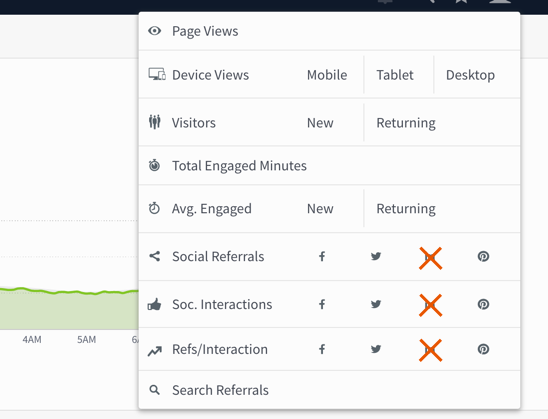
LinkedIn removed from social sort metrics
We’re removed both LinkedIn interactions and referrals from social sorting metrics because LinkedIn shut down an API providing social interaction data for all third-party tools and vendors, not just Parse.ly. We made several attempts to re-gain access to this data by working with LinkedIn’s content and news partnerships team, but we were unsuccessful. Therefore, we had no choice but to drop support for this metric from our product.
Moving forward, Parse.ly will continue to support interactions and referrals as sort metrics for Facebook, Twitter, and Pinterest.
Parse.ly will treat LinkedIn like any other referrer (such as Instagram or Reddit). You will be able to see LinkedIn referrals:
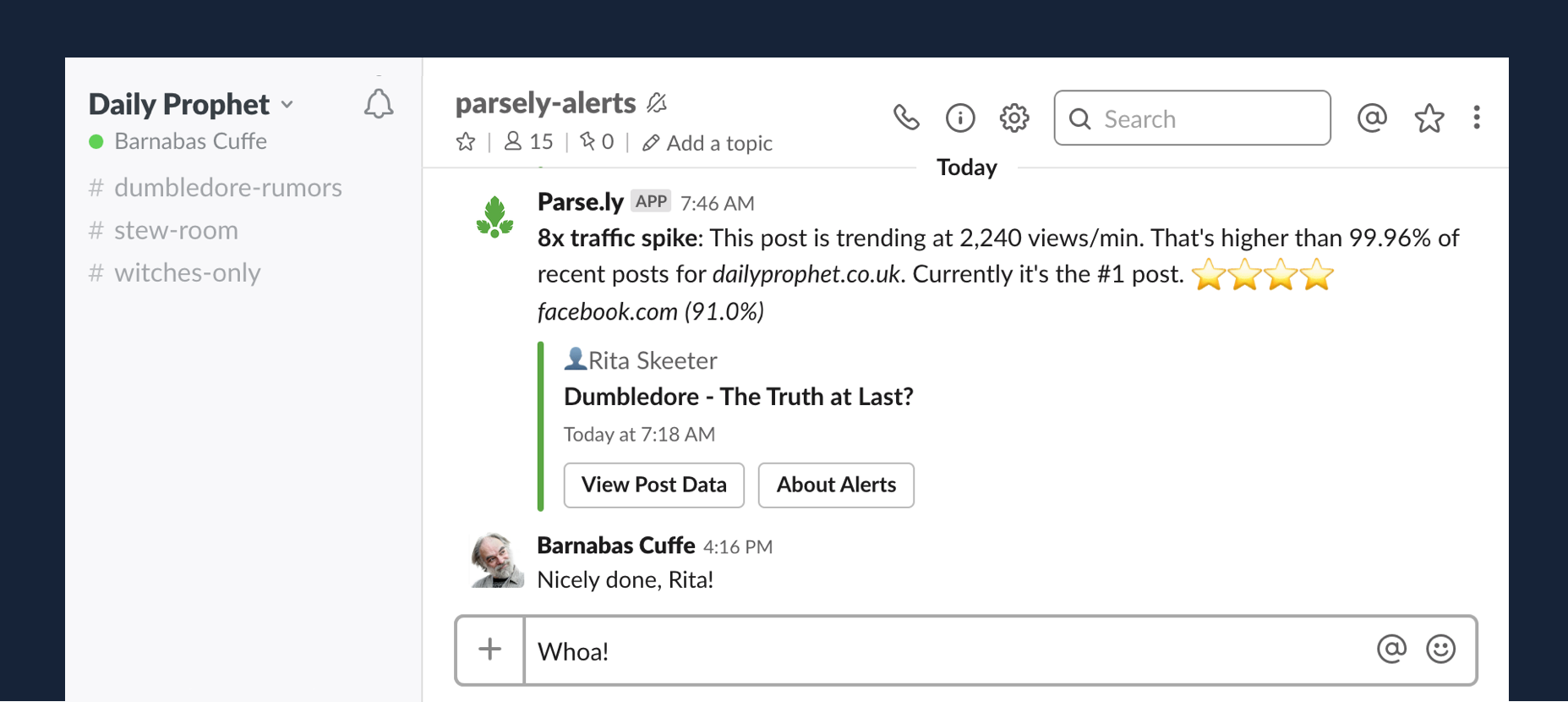
Alerts keep you informed about notable traffic to your content. You can now choose to receive alerts on your browser, on your mobile phone, in Slack, or in email when posts receive significantly more traffic than usual.
Learn how to subscribe to alerts and how alerts work: