Tags page
The Tags page of the Parse.ly Dashboard shows tags in use and tag groups, displayed and sorted by selected metrics and time frame. Up to 100 tags can be assigned to each canonical URL. You can find the tags page in the content menu of the navigation bar.
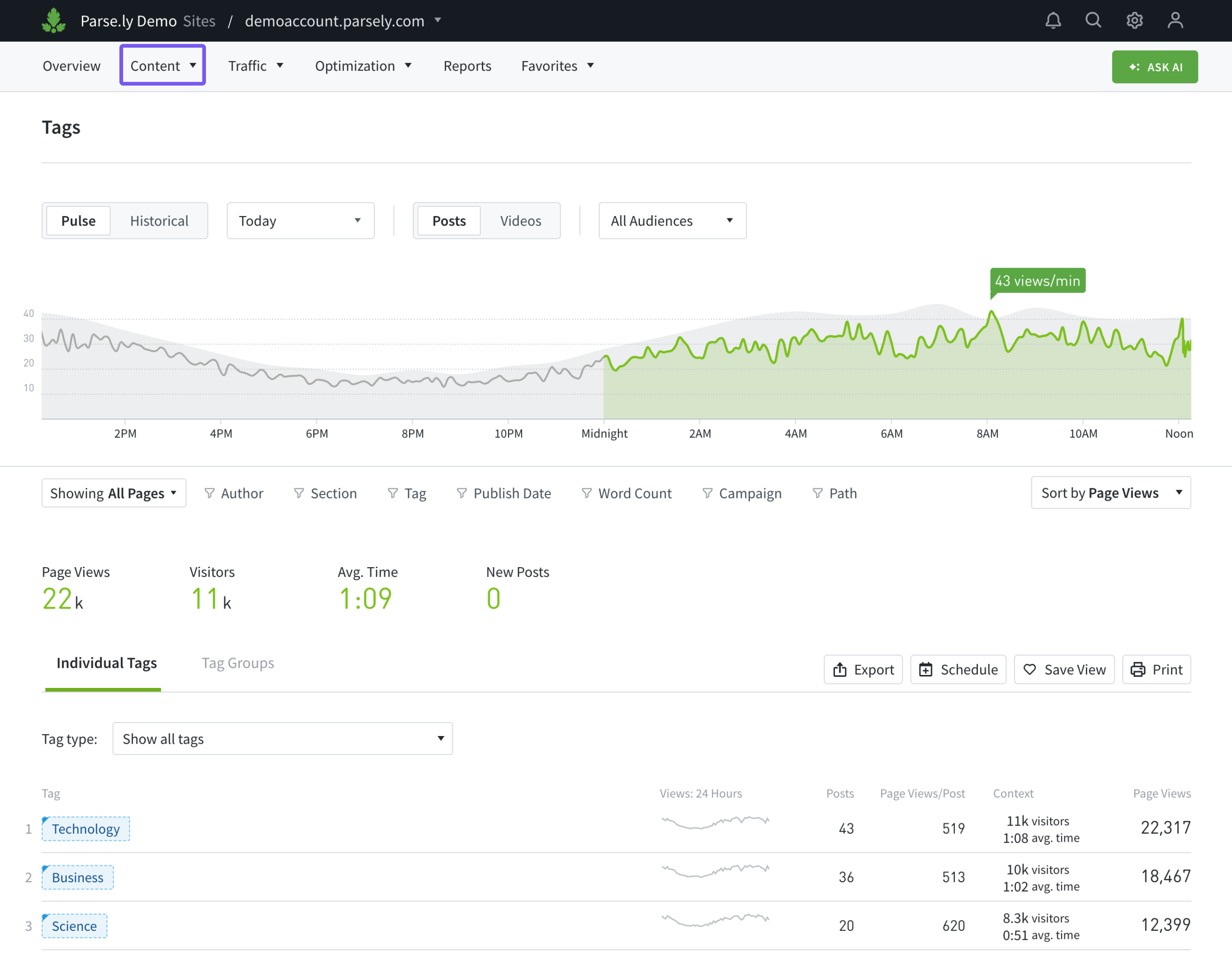
Tag groups allow you to assess metrics for a selection of tags, rather than view each tag’s performance individually, and smart tags are automatically applied to content.

The “Tag type” filter on Tags allows you to limit the list of tags displayed to all tags, only site tags, site plus high-level smart tags, or site plus low-level smart tags. Adjust which type of smart tags are automatically applied — or turn off smart tags completely — from the Preferences page of the account menu.
Learn more about navigating Pulse and Historical views, plus how to filter Dashboard pages like Tags:
Pro Tip
Read about how to best use tags on the Parse.ly blog: 5 Tagging Best Practices For Getting the Most Out of Your Content Strategy.
Last updated: November 13, 2025