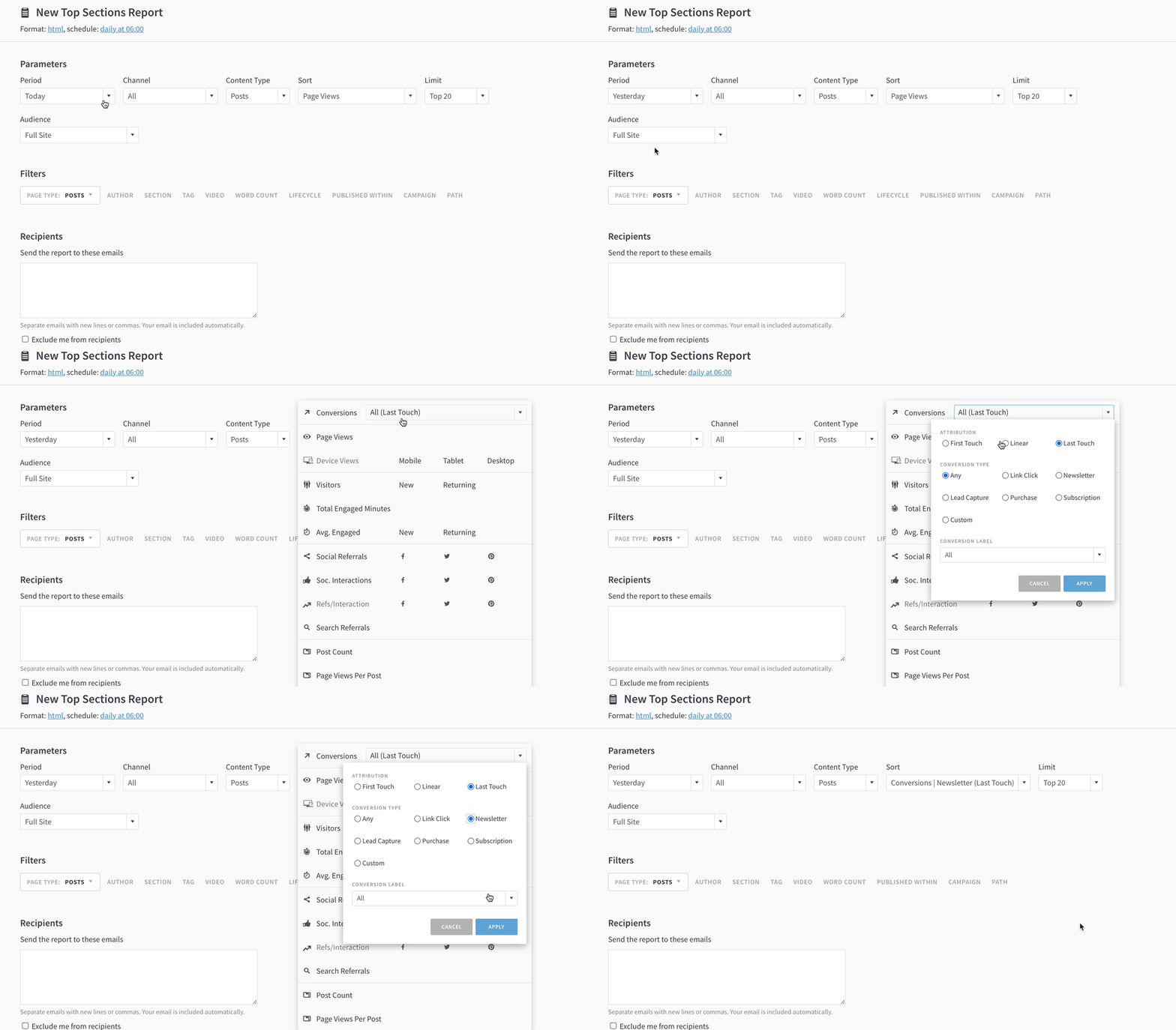
The tag type setting for scheduled reports was forgotten when reports ran again. That’s fixed.
On post details pages, if you hover over a referrer or channel, Parse.ly displays a highlight on the graph to show the percentage of total traffic (e.g. how much search traffic contributes to overall views). The highlight wasn’t matching the actual percentage of traffic. But it is now!
We now exclude cases where visitors went to the same page again (e.g. refreshed the page) from “Activity after this post.”
Search results now surface videos, break out written content into posts and other pages (i.e. non-post pages), and show a count of results in each category.
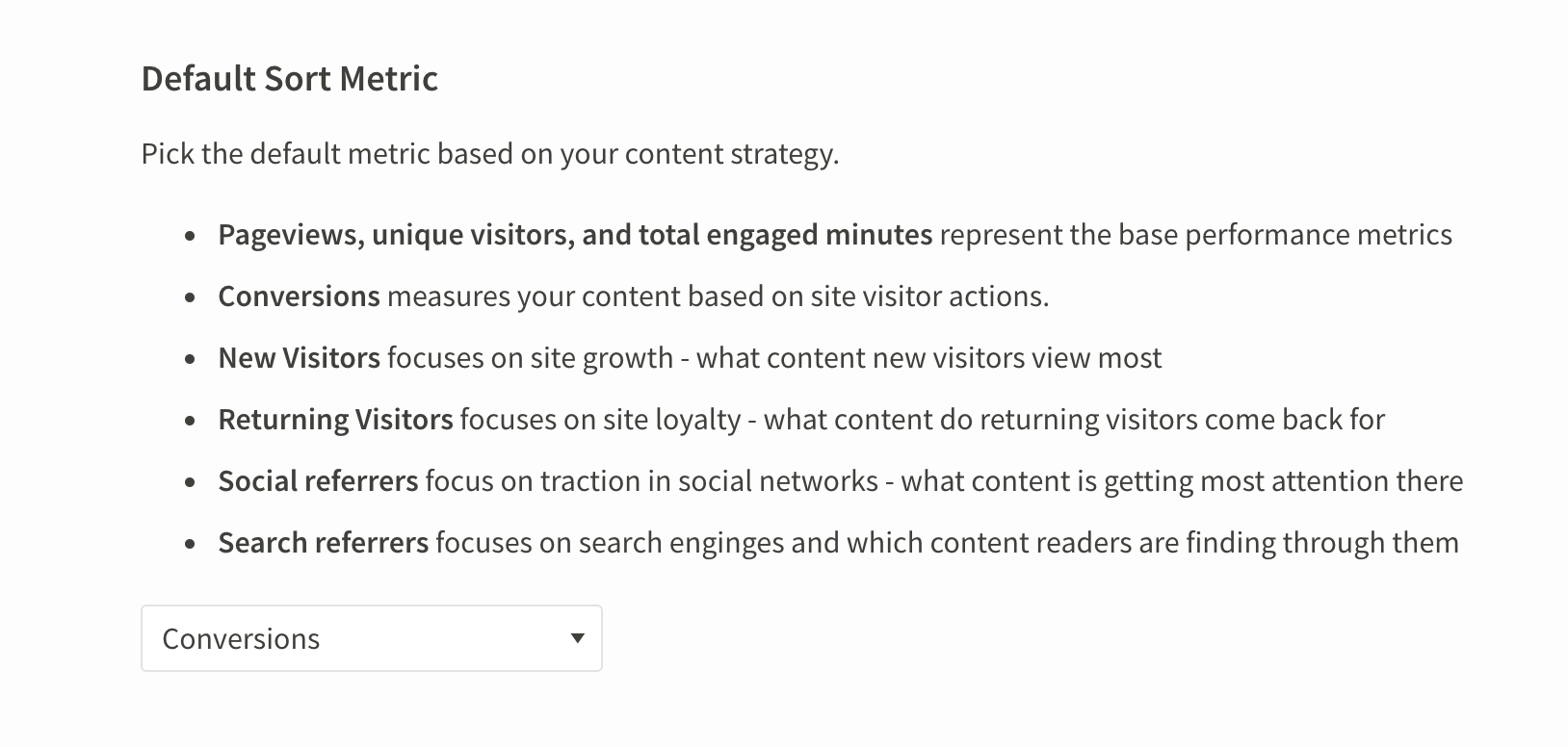
Set conversions as the default sort metric across your organization
From the Preferences page, admins can set conversions as the default sort metric for everyone who uses their Parse.ly dashboard.
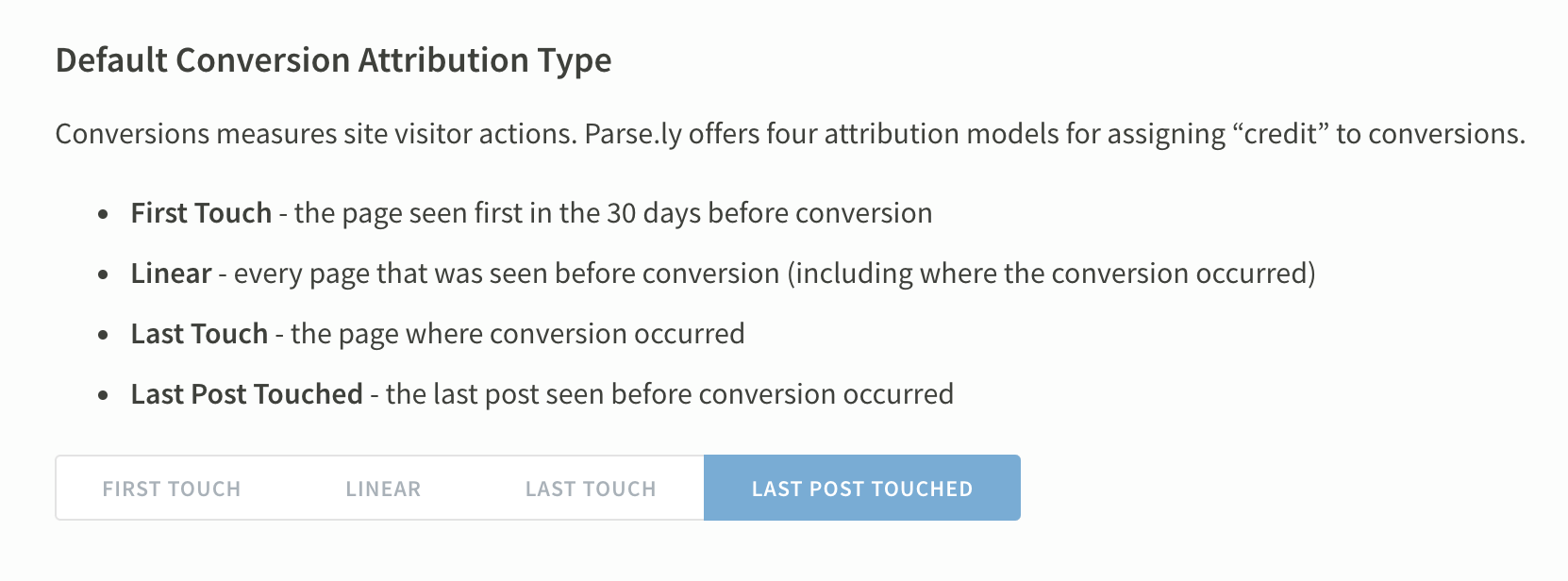
Admins can also select which attribution model, which assigns “credit” to content for conversions, shows up by default.
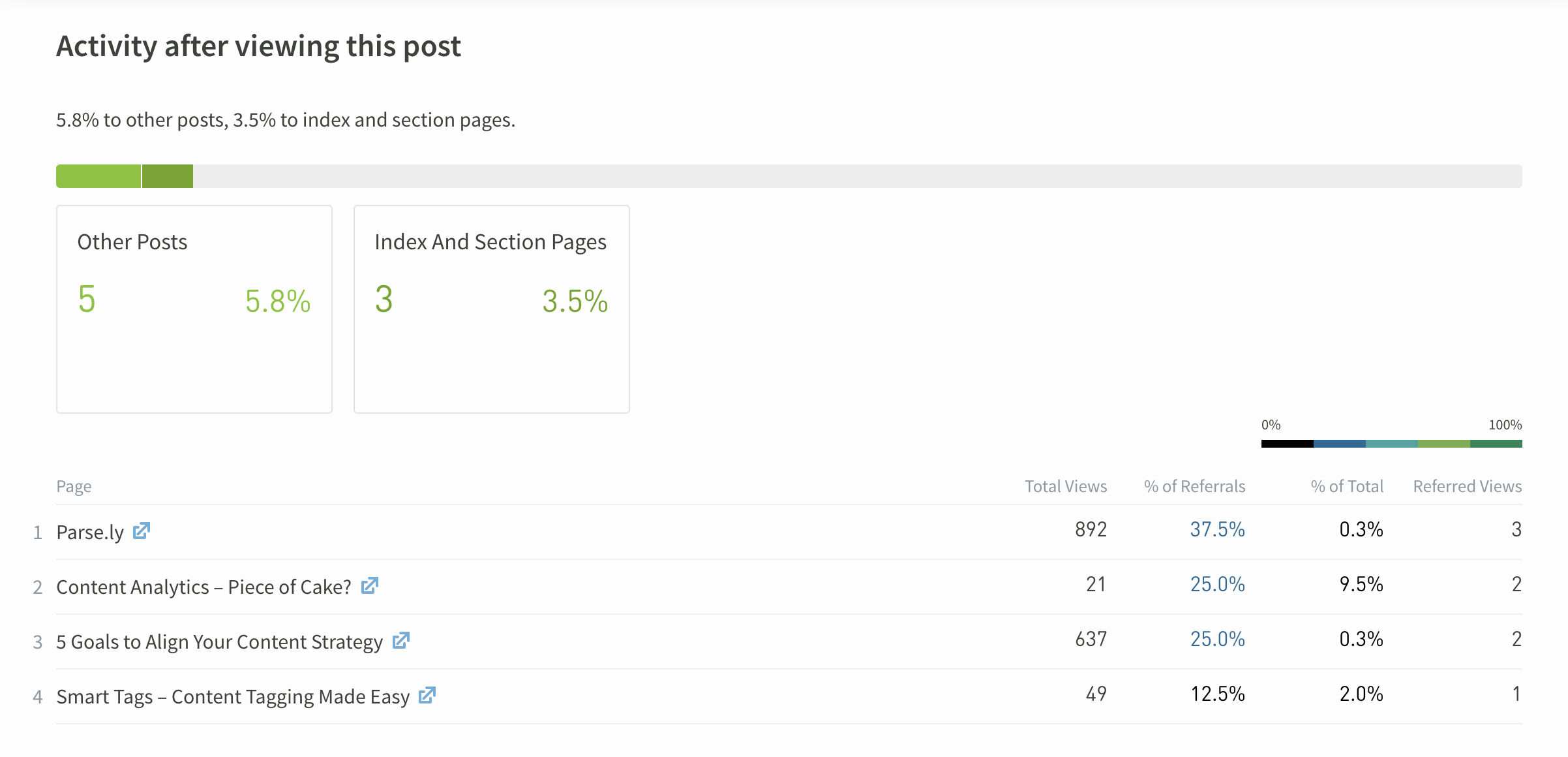
Find more metrics to contextualize the referred views a given page sent to other pages on your site. Look under “Activity after viewing this post” at the bottom of the post details page.
You can also filter down to show just the Other posts viewed after this page or the index and section pages (i.e. non-post pages) viewed next.
In the example above:
“Content Analytics – Piece of Cake?” got 21 total views, from various sources
25% of the views referred internally by this page went to “Content Analytics – Piece of Cake?”
This page referred 9.5% (2 views) of the 21 views to “Content Analytics – Piece of Cake?”
This page referred 2 views to “Content Analytics – Piece of Cake?”
Goals are a new feature in the Parse.ly dashboard!
Use our new goals feature to measure how successfully your content strategy is performing. Goals will help your entire team align on what success looks like, and signal how you can improve it.
Parse.ly’s Conversions are now faster. Previously, conversions would take a day to populate in the dashboard. With this update, customers are able to see conversions within 30 minutes of the event happening. You can now view Conversions on the Overview page and in the Pulse tab on the Conversions page. Plus, anywhere that you can select Conversions as a metric, you can select the time interval to be as recent as 30 minutes.
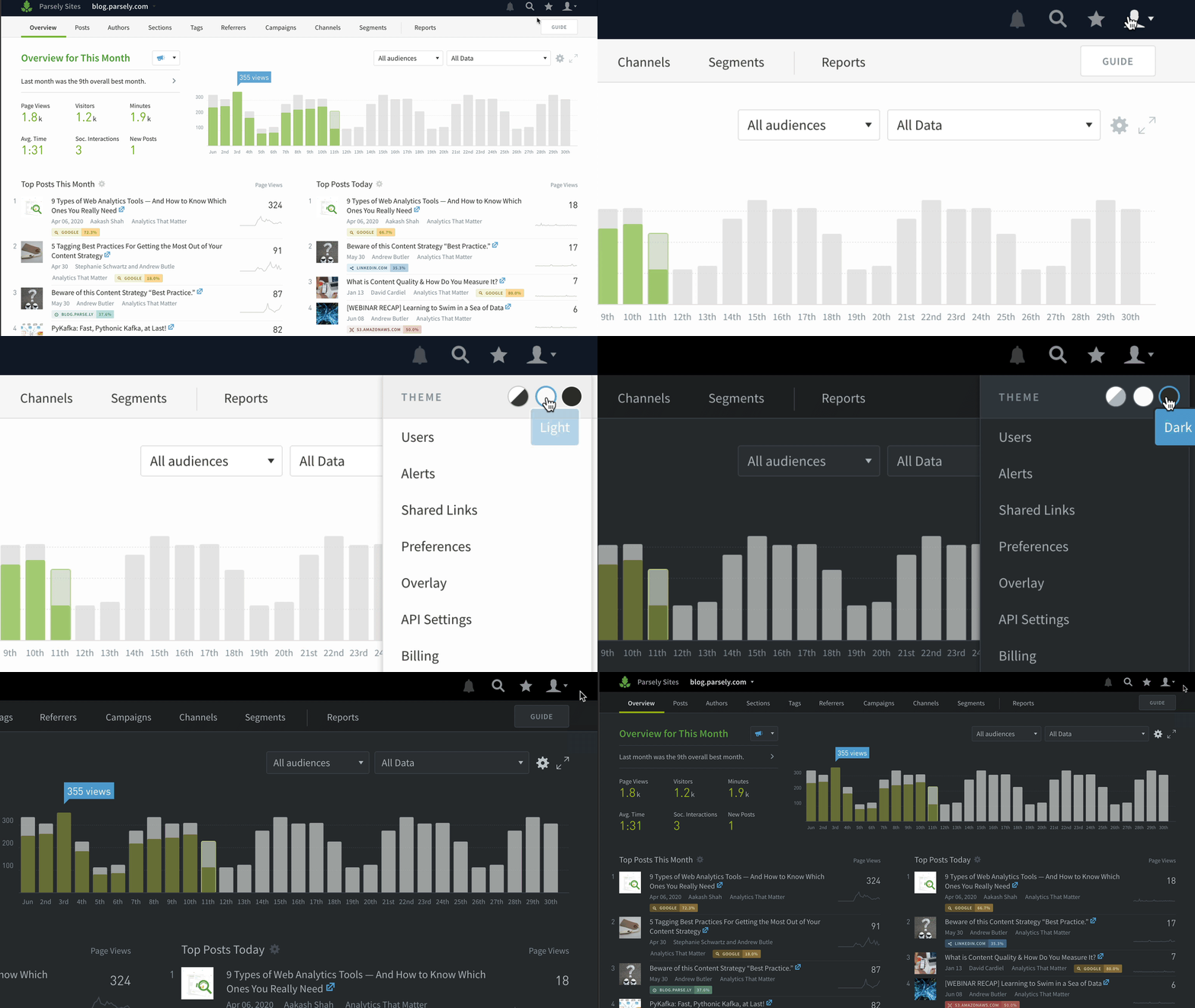
We’ve made some tweaks to the dashboard. You might notice a few changes like:
Improved accessibility for keyboard users
Tab through dashboard elements in Parse.ly, like navigations, menus, and buttons.
Dark mode
Eyeballs, rejoice! Easily switch between light mode, dark mode, or automatic (changes with your systems settings).
Conversions on post details pages
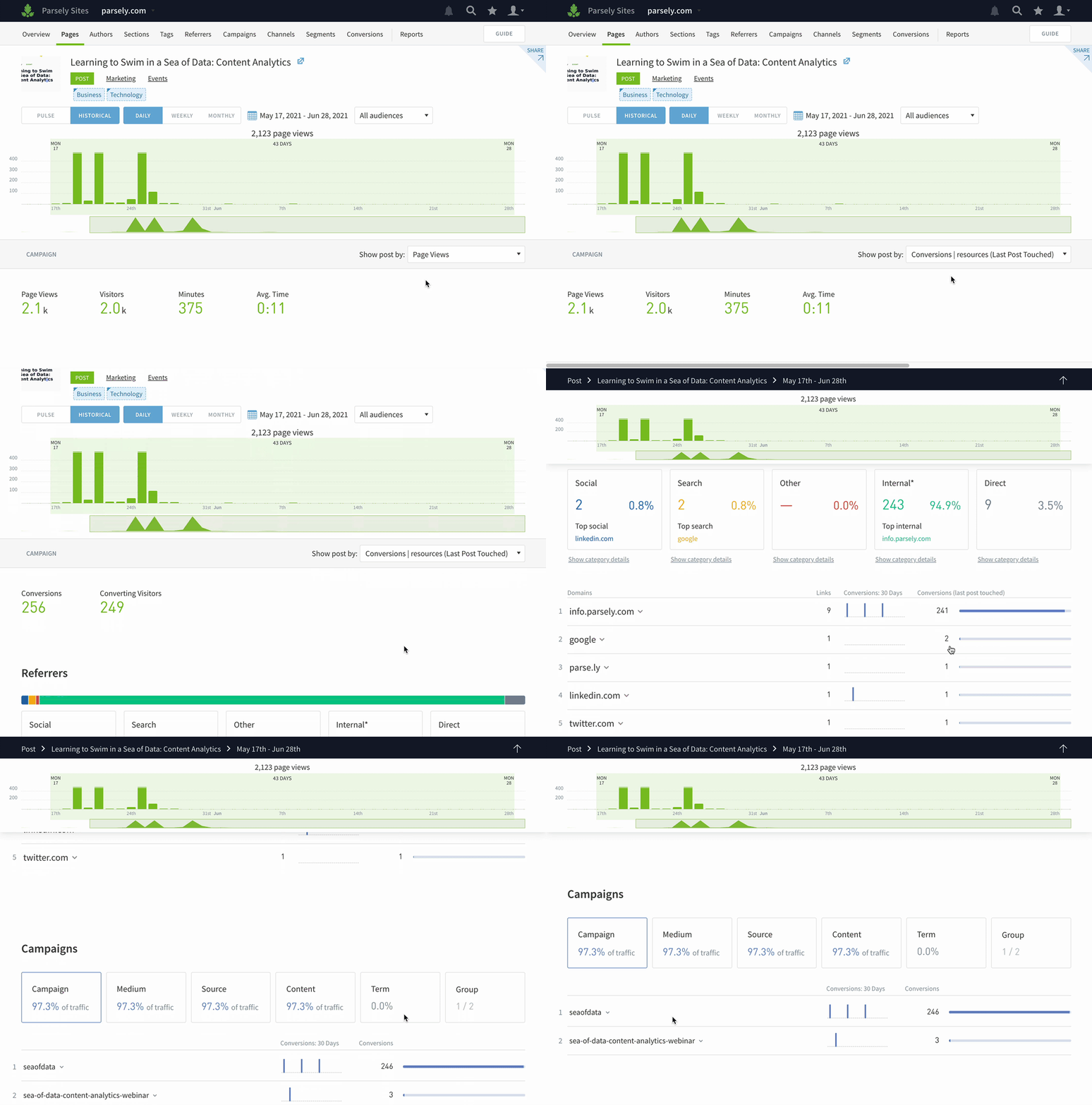
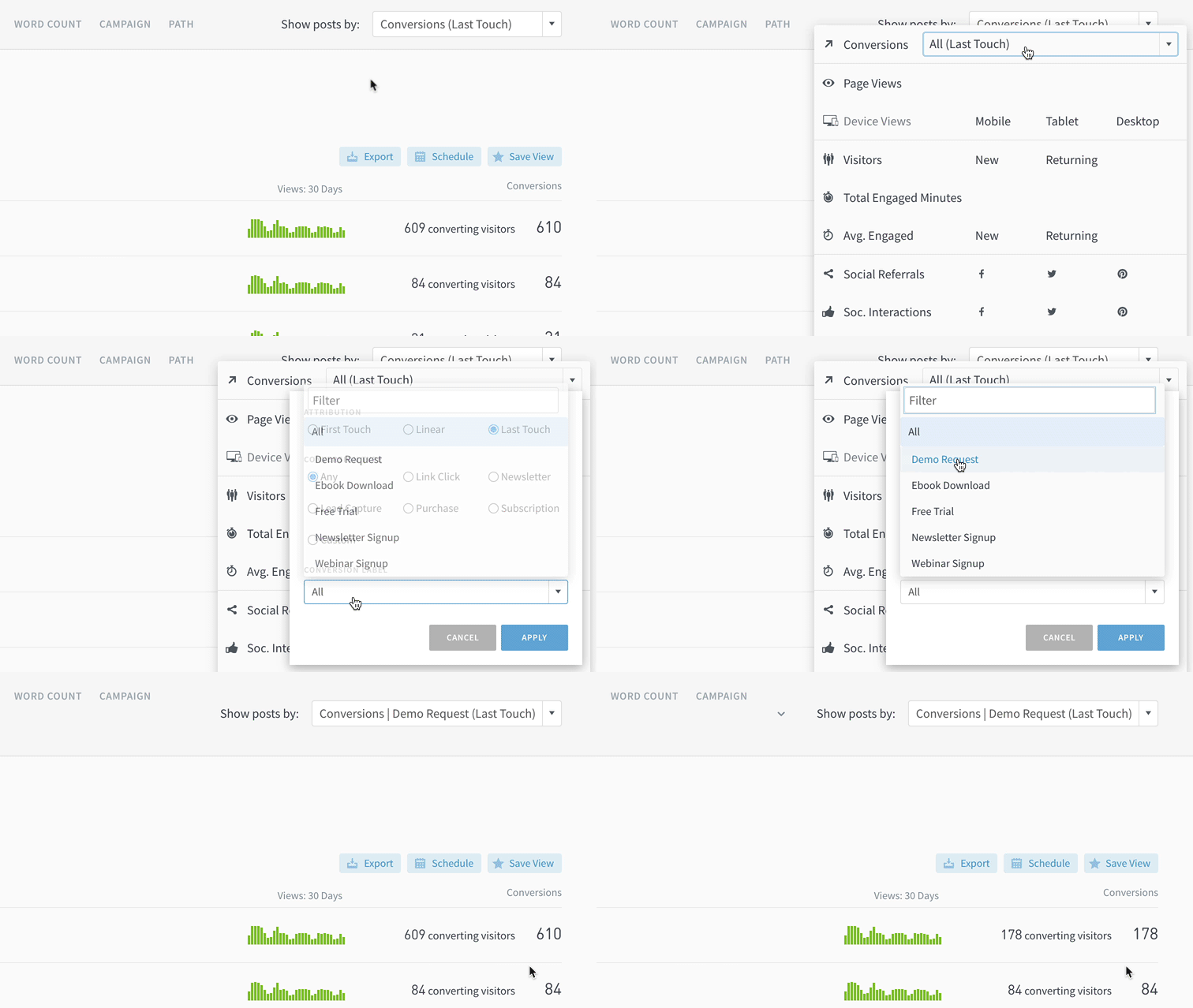
Now you can see how visitors got to a particular page before converting. This can be useful when you’re trying to understand what referrers and campaigns successfully got folks to sign up for a webinar or download an asset. Go to any post details page and click Conversion from the metric dropdown menu.
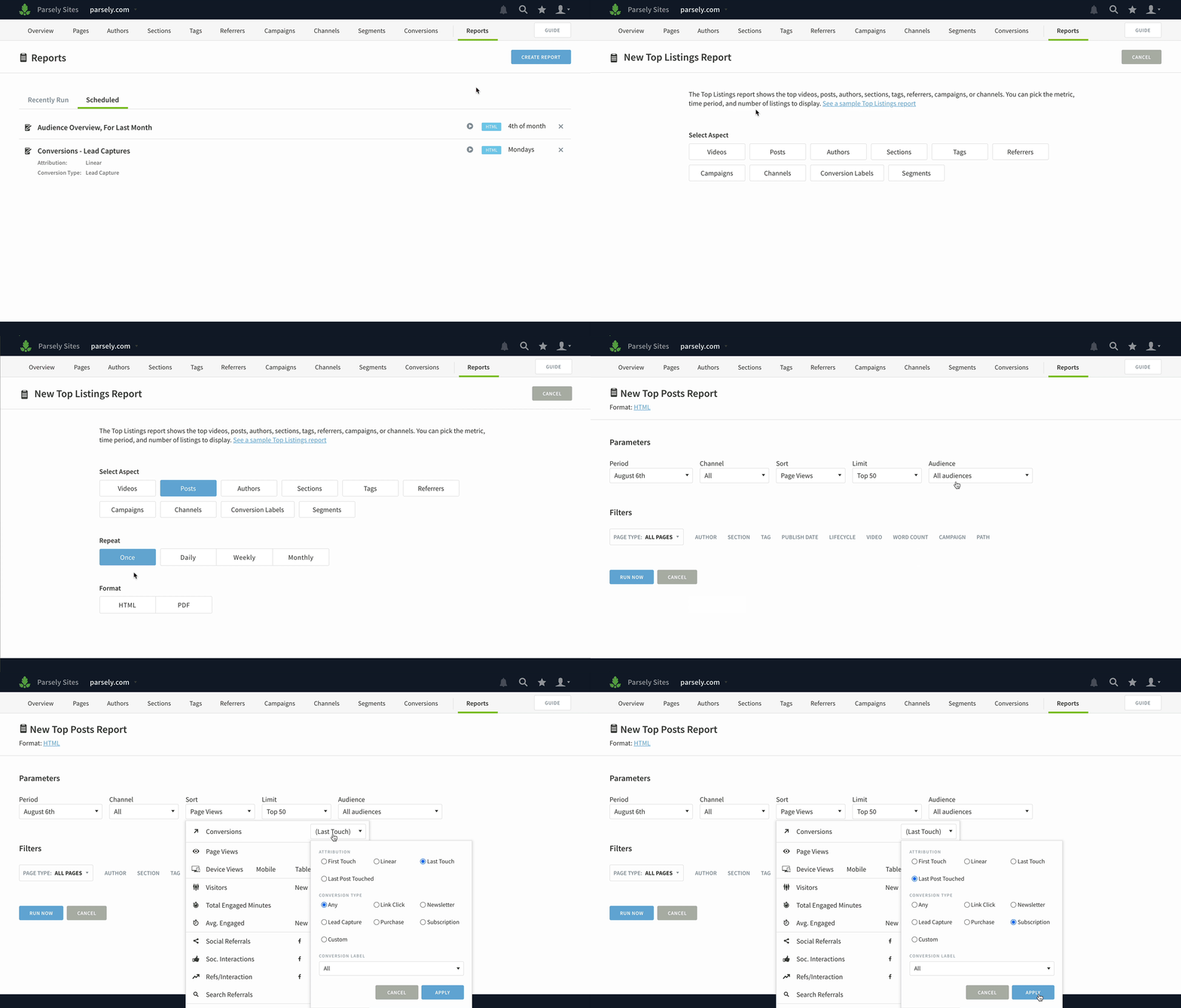
Conversions in Top Listings and Details reports
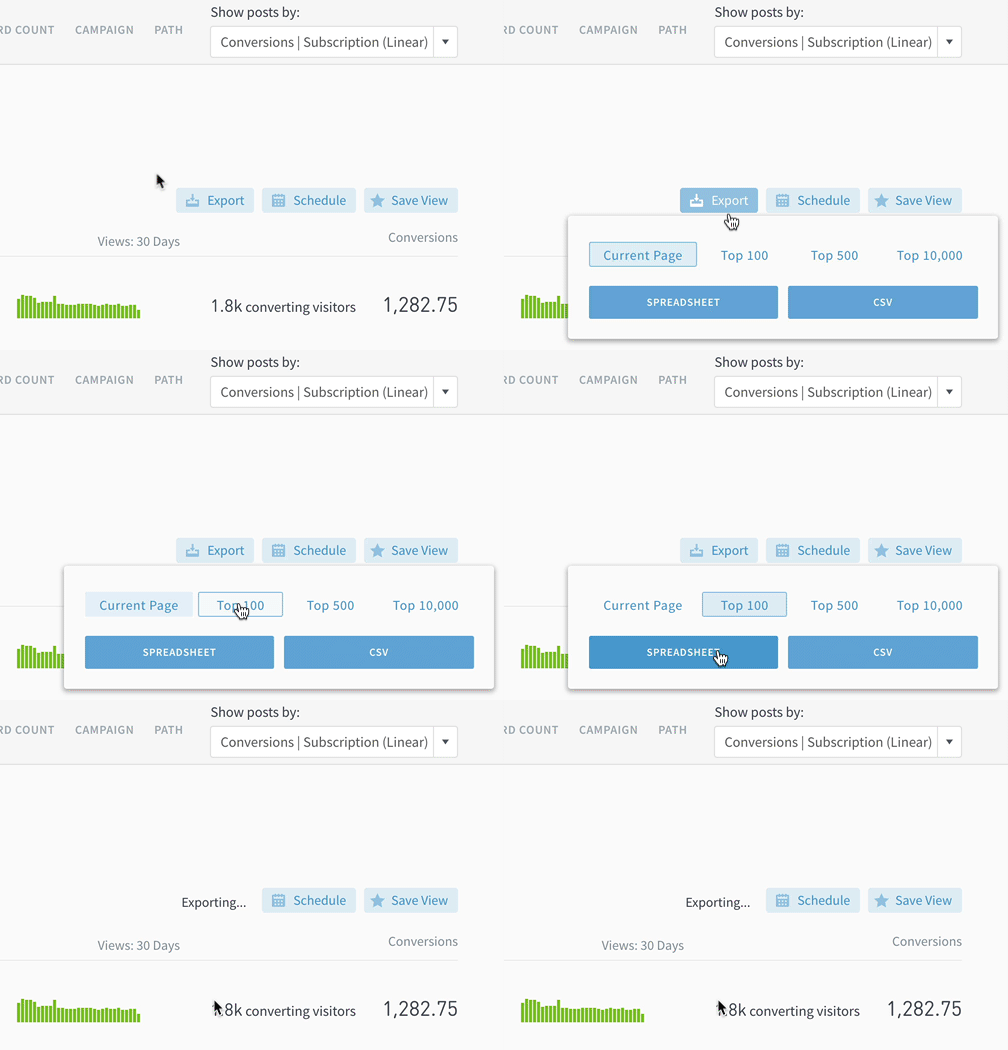
You can pull a list of top posts, authors, sections, tags, campaigns, or referrers by conversions using the Top Listings Report or Export.
Note that while we have deprecated the conversions report link from the Reports page, you can run the same report as a Details report.
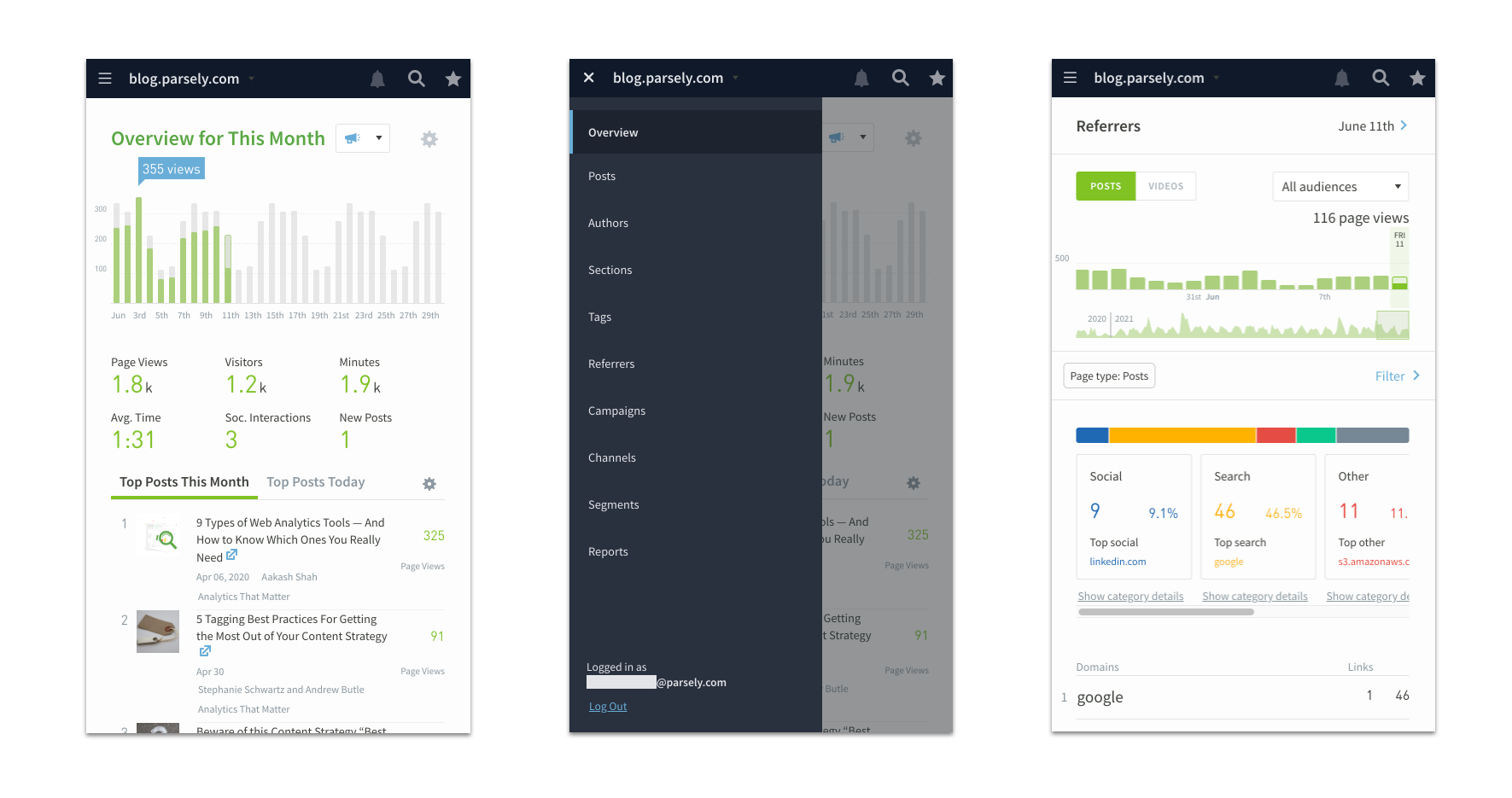
Better mobile web experience
It’s much simpler to use Parse.ly in your mobile browser now. Tap the hamburger menu to hop between screens and swipe and scroll with ease.
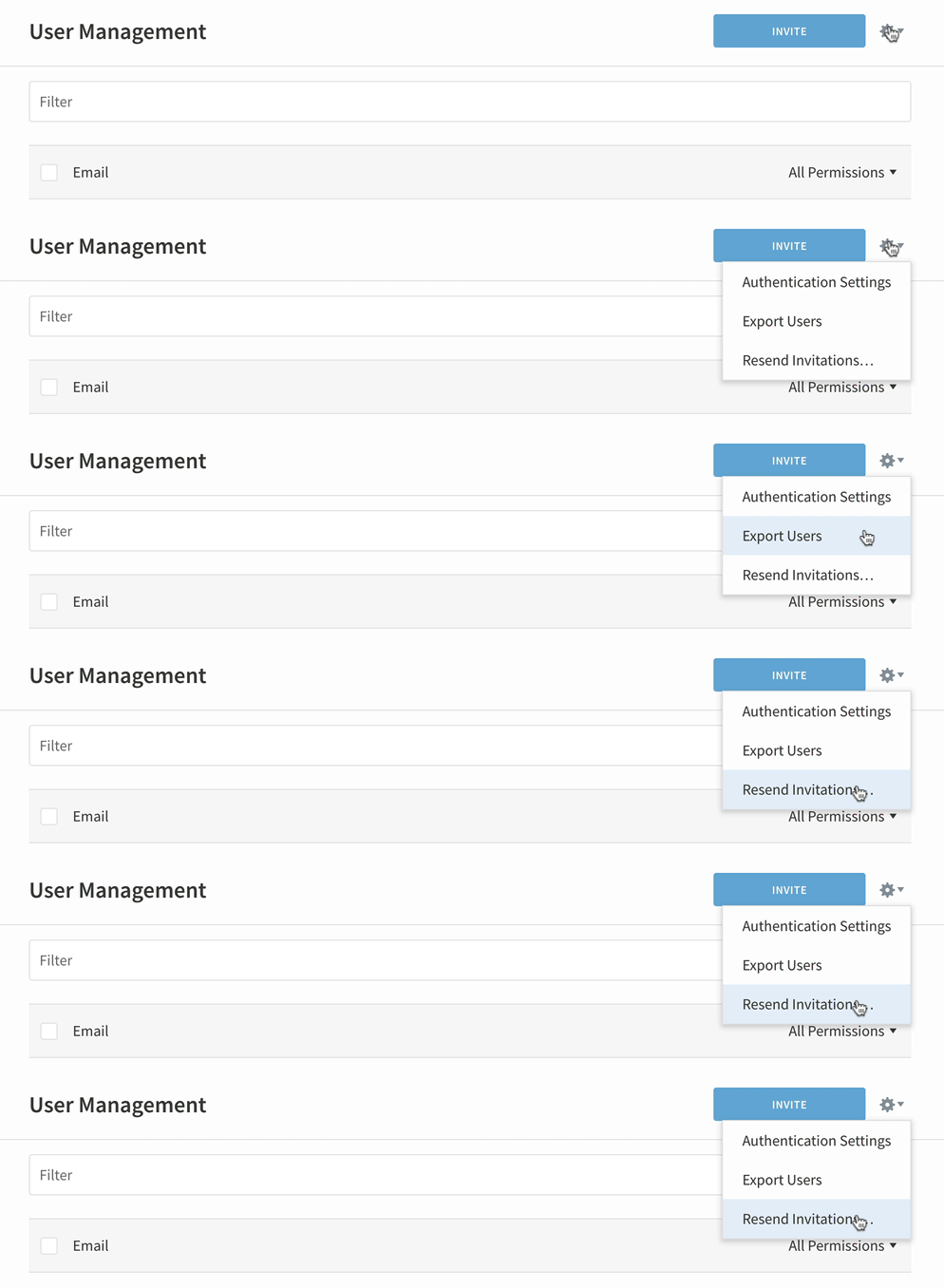
User settings
Access Authentication Settings, Export Users, and Resend Invitations by clicking the cog on the User Management page.
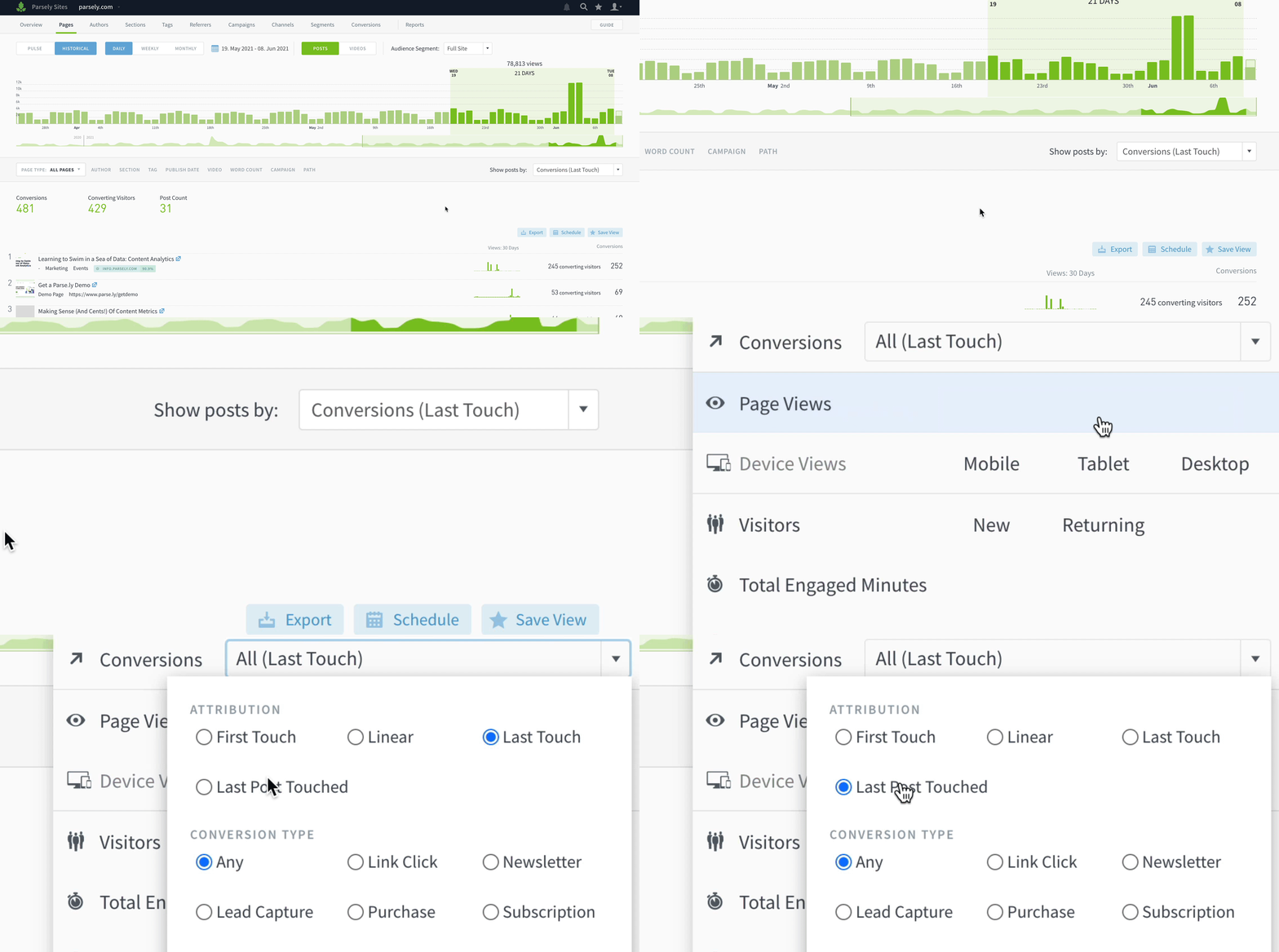
Last Post Touched attribution is a new way to pinpoint specific posts that “pushed visitors over the edge” to purchase or subscribe.
If your Parse.ly subscription includes conversions, you should see Last Post Touched as an option in the conversions metric dropdown in your dashboard:
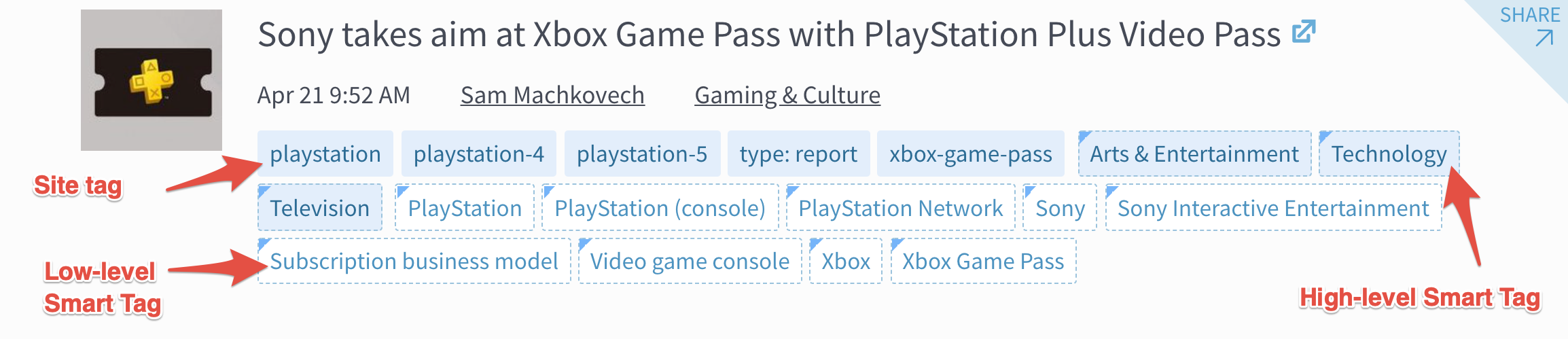
Say hello to Smart Tags, a new way to classify the subject matter of your content, no maintenance in your CMS required. You’ll see them show up in Parse.ly alongside your regular tags (aka “site tags).
We know tagging content manually can be a headache. It’s easy to forget to add tags when you publish a post or to make sure your team uses them consistently. Smart Tags does the work for you, scanning pages and posts to determine relevant topics and assigning tags to them automatically.
Conversions are now in the Parse.ly dashboard. With the ability to give content credit for user actions, you can prove value to your boss and get buy-in across teams.
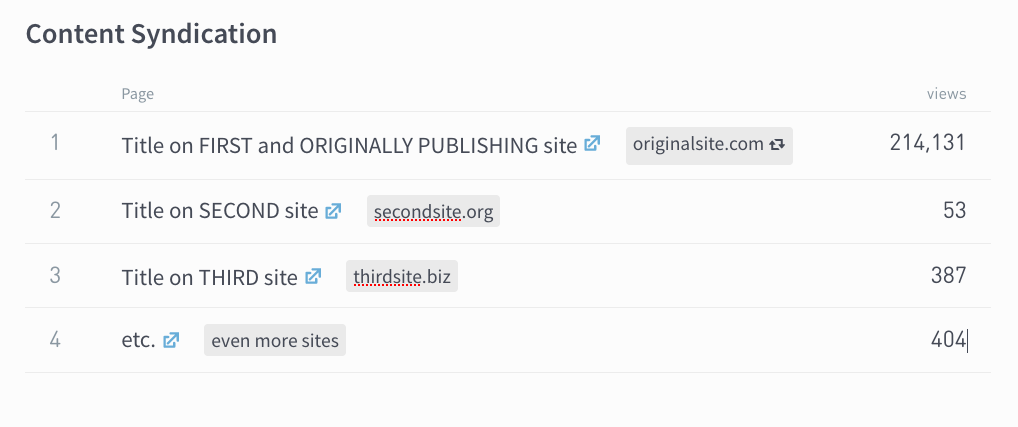
If you syndicate content, you know that it’s a pain to manually aggregate the metrics for the same articles on different sites. With Network Syndication Tracking, you can now easily measure the success of reposting articles across your owned sites.
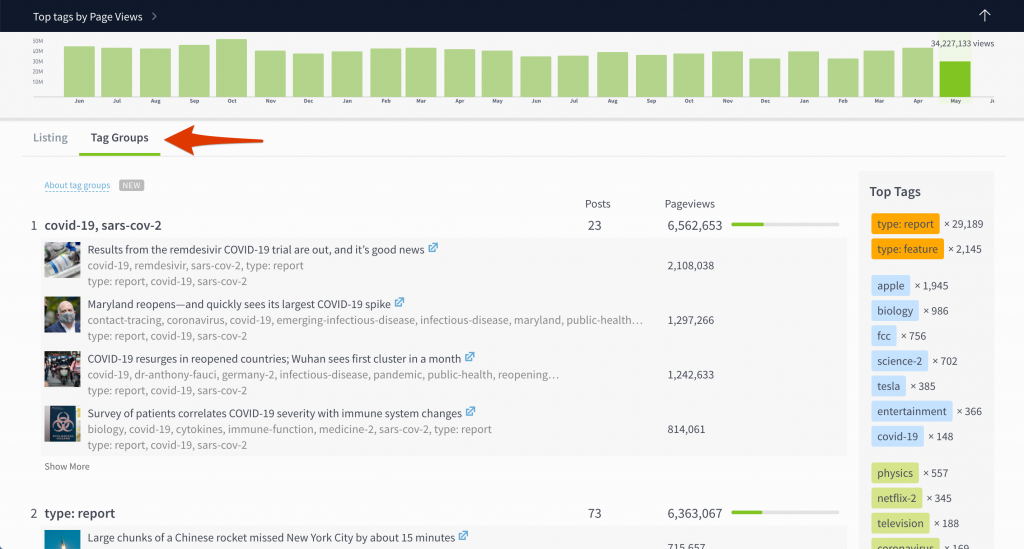
With Tag Groups, you can see what content contributes to a tag’s traffic, what tags get used widely, and which tags frequently appear together. This should help you understand how tags are applied to content and give you insight into narratives and themes that you might have missed otherwise.