Top bar

The top bar is found across the very top of the Parse.ly Dashboard. It sits above the navigation bar and contains several features and tools.
Network identifier

The far left of the top bar displays the name of your network. Clicking here brings you to https://dash.parsely.com/[your Network name]/sites/.
If you have more than one production site in the Dashboard, this view is known as Network Rollup, where a comprehensive overview of all sites (production and non-production) in the network can be seen, along with all Dashboard functionality.
If you only have one production site, this view is instead a basic snapshot of the production site and any non-production sites — click any of these from the list to see deeper details.
Site group identifier

To the right of the network identifier in the top bar, there will be a site group identifier if viewing a site group. Clicking this identifier navigates to a view of sites within that site group at https://dash.parsely.com/[your network name]--[your site group name]/sites/.
Site ID selector
When in Network Rollup, “All Traffic” is seen in the top bar to the right of the network identifier. This drop-down selector allows navigation between various network levels, such as site groups and sites. If access is needed to one of these, ask an admin user to grant additional permissions.
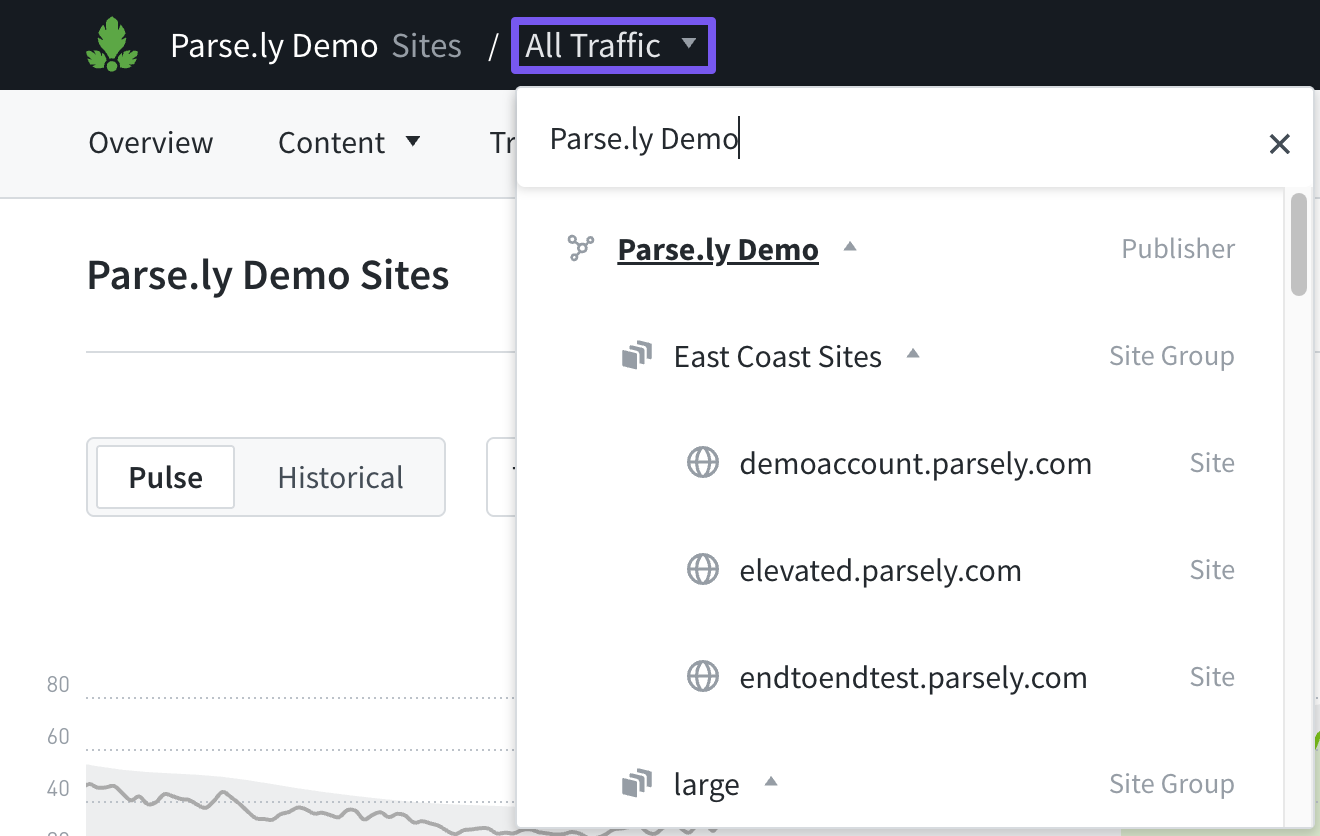
In a site group view, click “All Traffic” to navigate to the single sites contained within that site group.

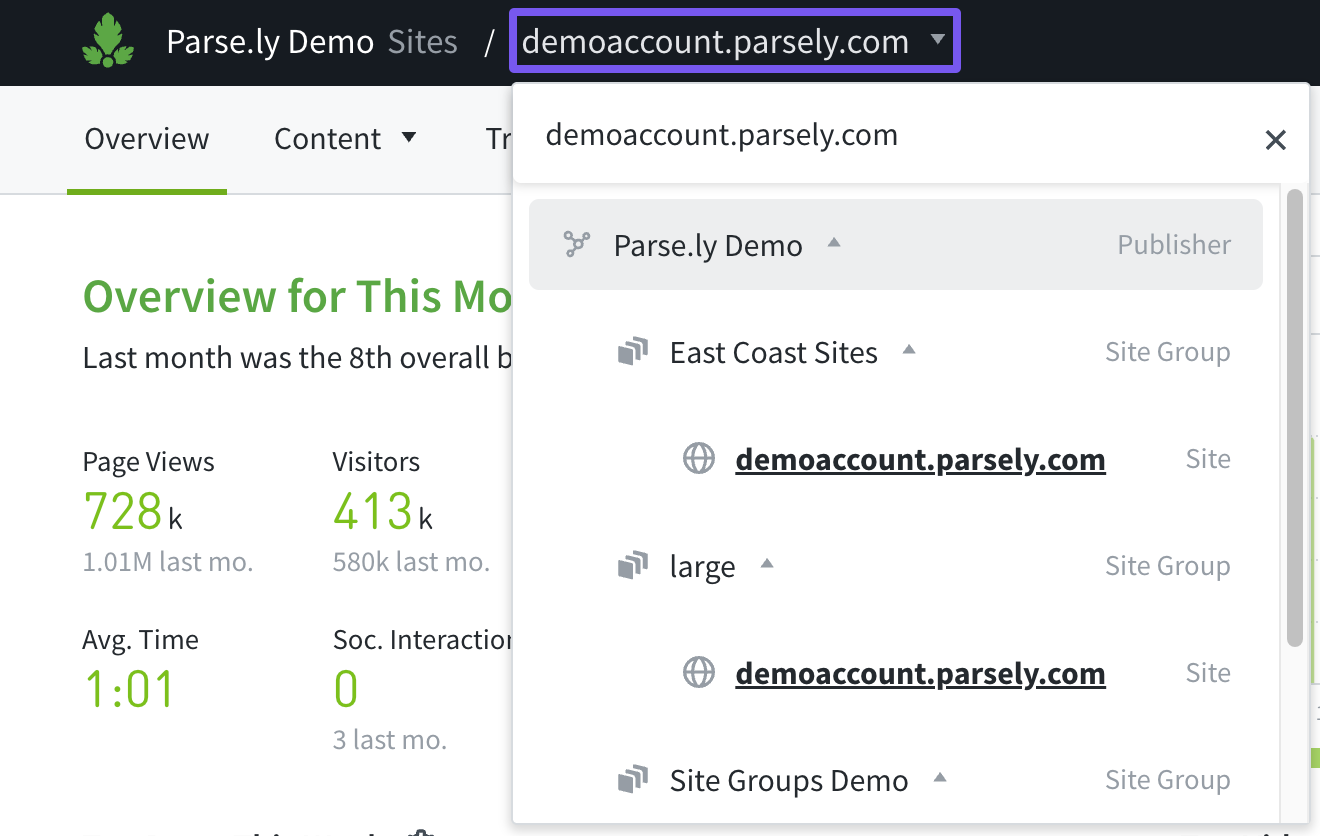
When viewing a single site in the Dashboard, the site ID selector displays that site’s Site ID. Clicking here opens a drop-down menu to allow navigation throughout the rest of the network.
Alerts & Notifications
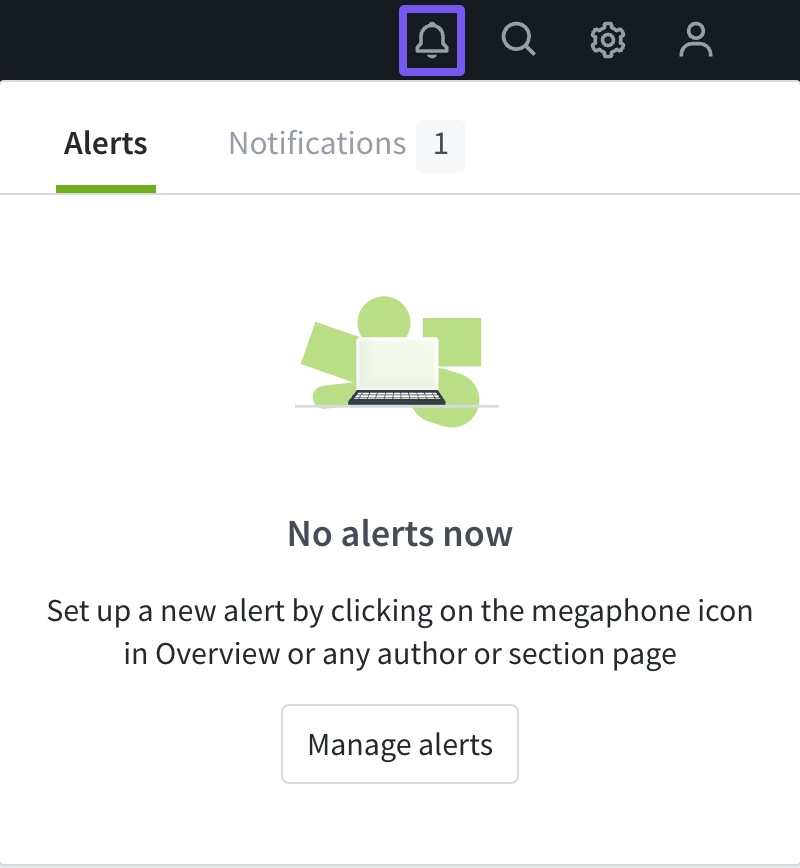
Click the bell icon on the right side of the top bar to see a list of recent alerts and notifications.
Search

The magnifying glass icon on the right side of the top bar opens a search field when clicked. You can search for posts, authors, sections, or tags. Typing in this search bar begins populating a preview of results. Click “All results for…” to see all possible search results.
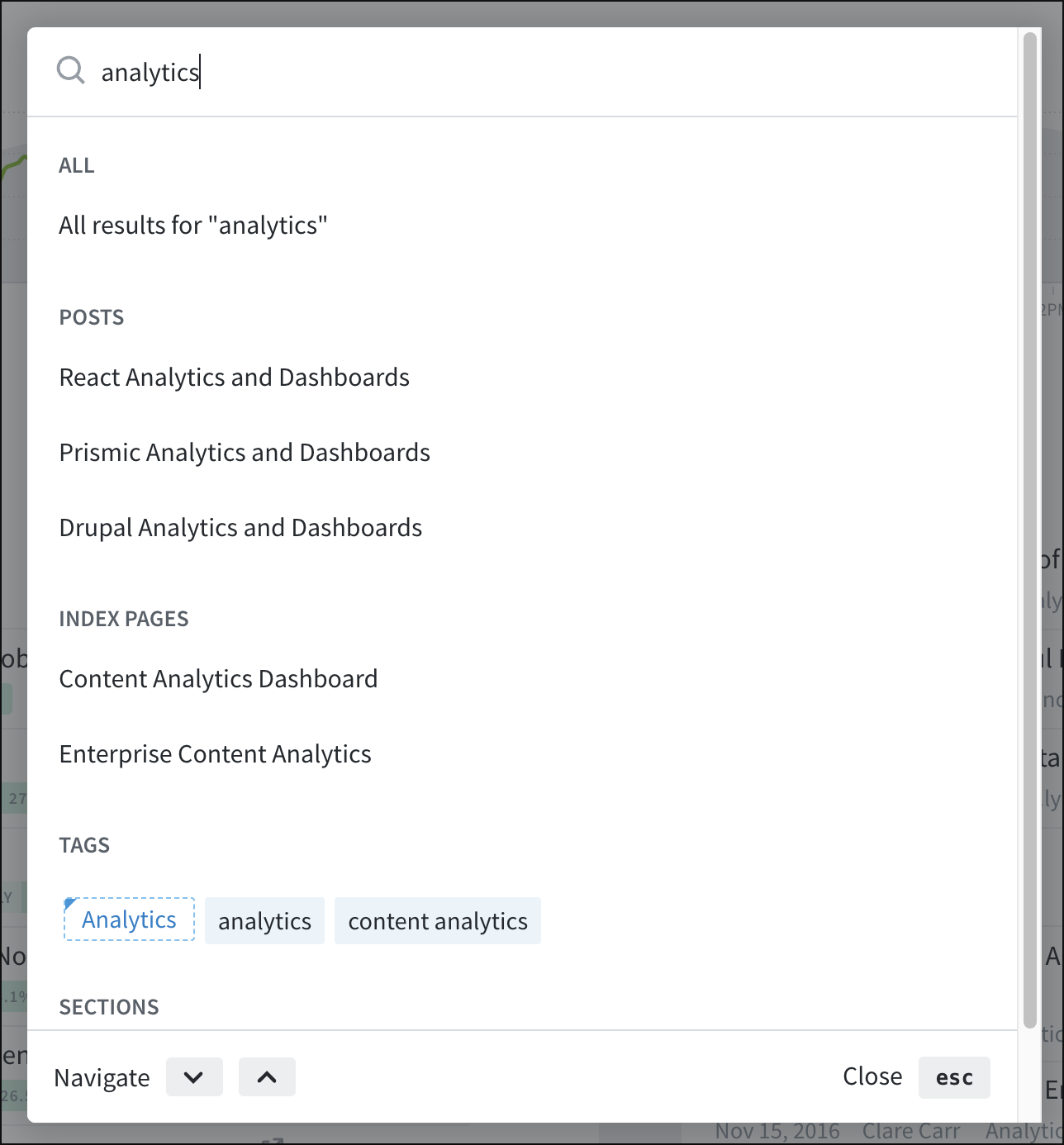
The search index is refreshed once per hour. If an article was just published, it may not have been indexed yet. You can search using a post title (headline), URL, the full text of your content, or any metadata (including sections and tags).
Pro Tip
Looking for a specific post? Try our Open-in-Parse.ly bookmarklet. One click will take you directly from your article to Parse.ly’s post details page.
Site settings

Access the site settings menu by clicking on the gear icon in the top bar. This menu is available to network and site admins. Non-admins may find a list of admins from the account settings page. Usage is only available at the site level and will not appear in the network rollup view.
User options

Access the user options menu at the far right of the top bar. You may find a list of admins and change your password by clicking on “My account.”
Last updated: July 03, 2026