Campaigns page
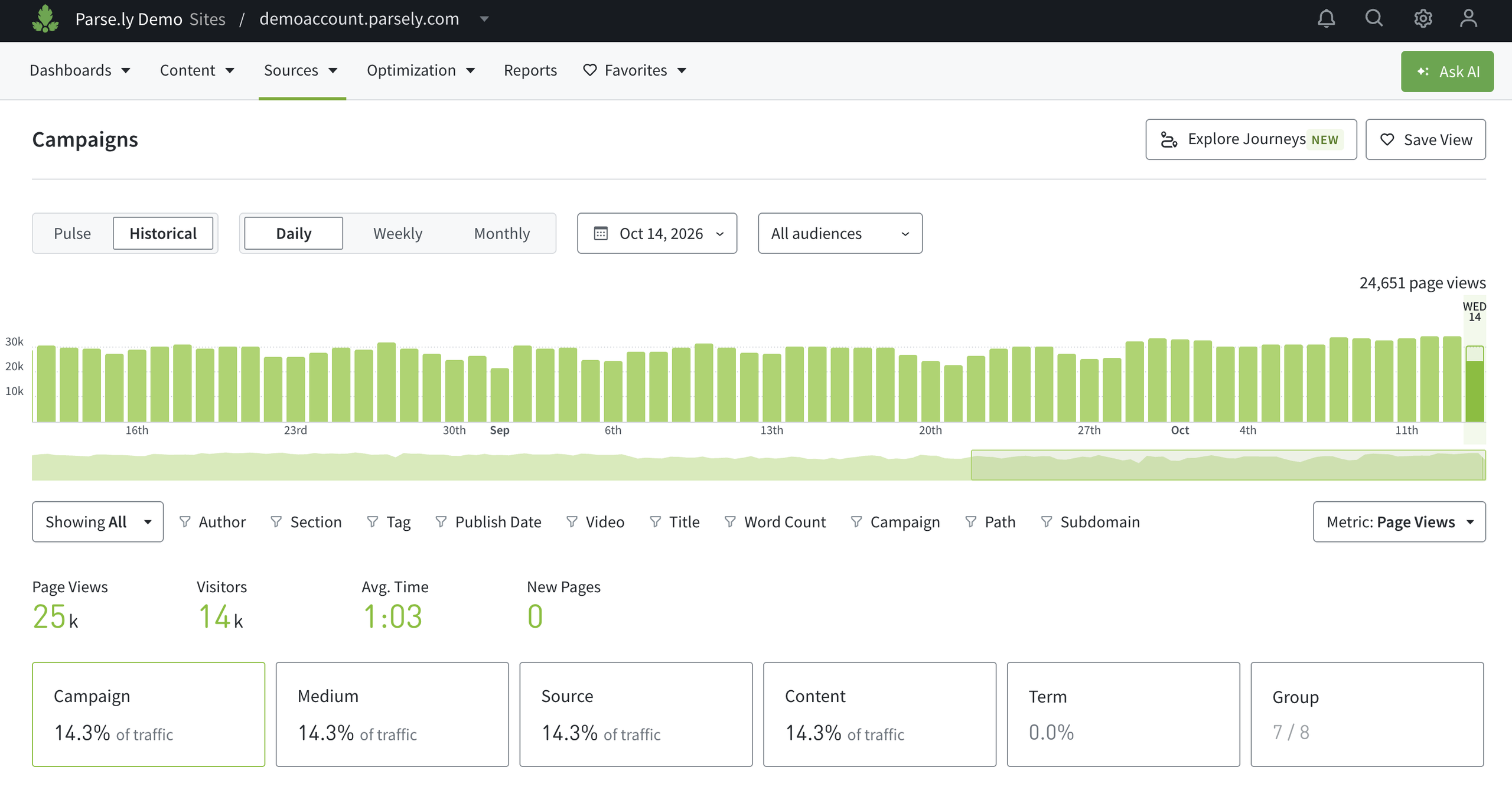
The Campaigns page in the Parse.ly Dashboard serves as the hub for campaign metrics. With Parse.ly’s campaign tracking, your team can maximize the effectiveness of digital marketing campaigns. On Campaigns, individual campaign metrics and campaign groups can be viewed, and you can access more details on particular campaigns. You can find the campaigns page in the sources menu of the navigation bar.
Learn more about navigating Pulse and Historical views, plus how to filter Dashboard pages like campaigns:
Campaign parameters
Campaigns displays six tiles that allow filtering. These include five campaign parameter tiles and a tile for campaign groups. Site admins can adjust the order of these tiles via the preferences page of the site settings menu.
The campaign parameter tiles correspond with UTM parameters: Campaign, Medium, Source, Content, and Term. (Don’t use UTM parameters? See other supported parameters.) Each parameter tile answers questions about campaign performance, and clicking a parameter tile filters the list of campaigns below. Click one of the listed campaigns to see more details.
- Campaign: Why is traffic going here? Examples:
fall-promotion,june-product-launch. - Medium: How did traffic get here? Examples:
social,email,paid. - Source: Where did traffic come from? Examples:
facebook,whatsapp,newsletter. - Content: What did audiences click on to get here? Examples:
banner-ad,link-1,subscription-cta. - Term: What did audiences search for to get here? Examples:
dessert-recipes,running-shoes,data-visualization. - Group: View campaign groups. Site admins can create campaign groups here.
Note
Campaign metrics don’t include social interactions data. Social interactions data is based on unique destination URLs, with parameters disregarded.
Last updated: October 14, 2026