Google Search Console
Connect the Parse.ly Dashboard with Google Search Console (GSC) to include search performance data alongside content performance data. View Google Search Keywords, Google Discover, and Google News data right in the Dashboard, eliminating the need to log in separately to GSC.
Note
Follow the guide to integrating GSC with Parse.ly, then grant users access to view GSC data in the Dashboard.
Use cases for GSC data
- Identify the top search keywords bringing traffic to your content.
- Identify the search keywords that your content isn’t delivering well on and adapt your SEO strategy accordingly.
- See which posts are showing up in Google Discover and bringing traffic to your site. If this looks to be a trend over time, you can begin to make sense of the kind of content from your site that Google tends to show in Discover.
Where to find GSC data
After integrating GSC, keyword data will appear in the Dashboard. To view this data, click on Google Search Console in the traffic menu of the navigation bar.
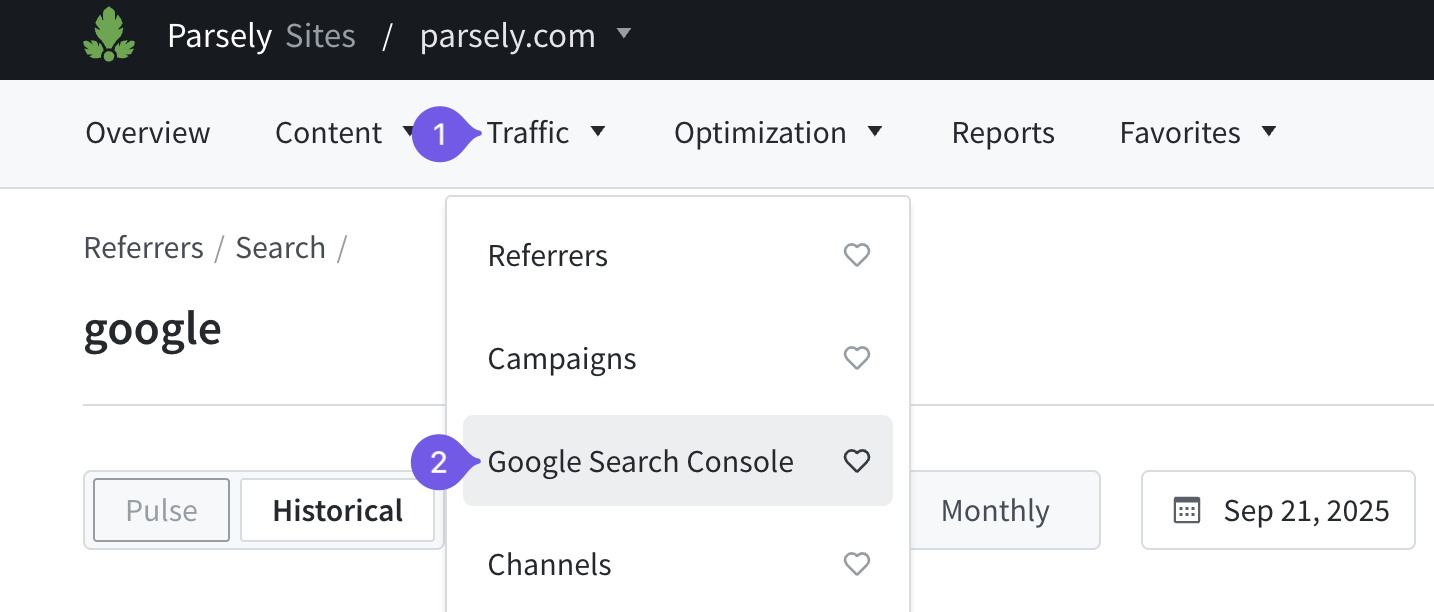
You may also access GSC data from the referrers page. Click the “View Google Keywords” button.

This will open the referrer details page for Google, where Google Search Keywords, Google Discover, and Google News data can be explored.
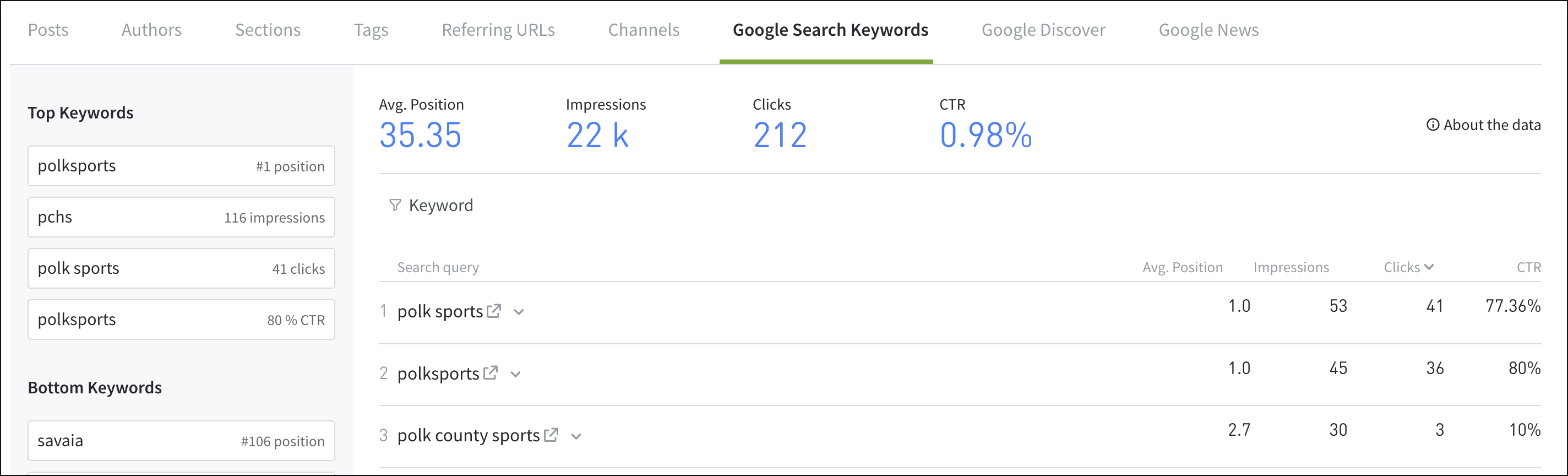
The referrer details page for Google can also be accessed by clicking “google” from the list of individual referrers on Referrers.
GSC data is also found on post details pages. And Google Search Keywords and Discover data can be included on the Overview tab.
Last updated: December 02, 2025