Alerts
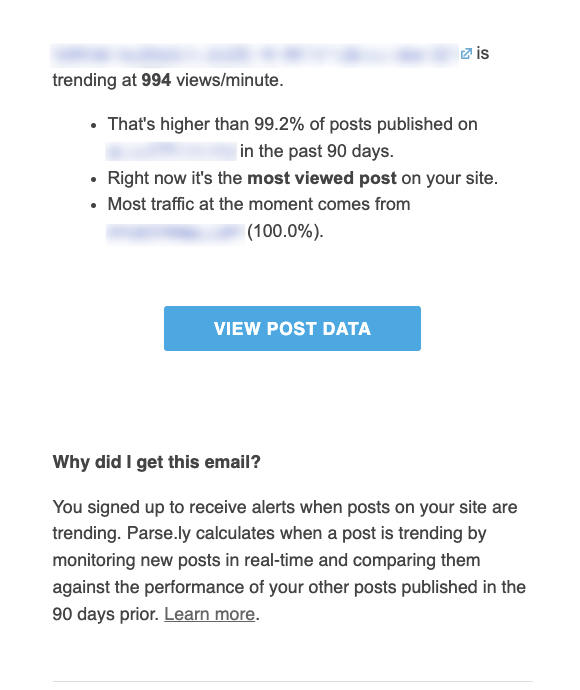
Parse.ly alerts help you stay informed when posts receive significantly more page views than usual. Alerts can be received via desktop or mobile browser, Slack, or email.

Subscribe to alerts
Alerts can be subscribed to for traffic spikes on posts across a site, posts within a specific section, or posts by a specific author.
Note
For alerts in mobile browsers to work, the browser doesn’t need to remain open, but it does need to be running in the background.
On Android phones, the browser doesn’t automatically start after a phone restarts, so mobile alerts should not be considered 100-percent reliable. Use email or Slack alerts if full reliability is required on a mobile device.
Site alerts
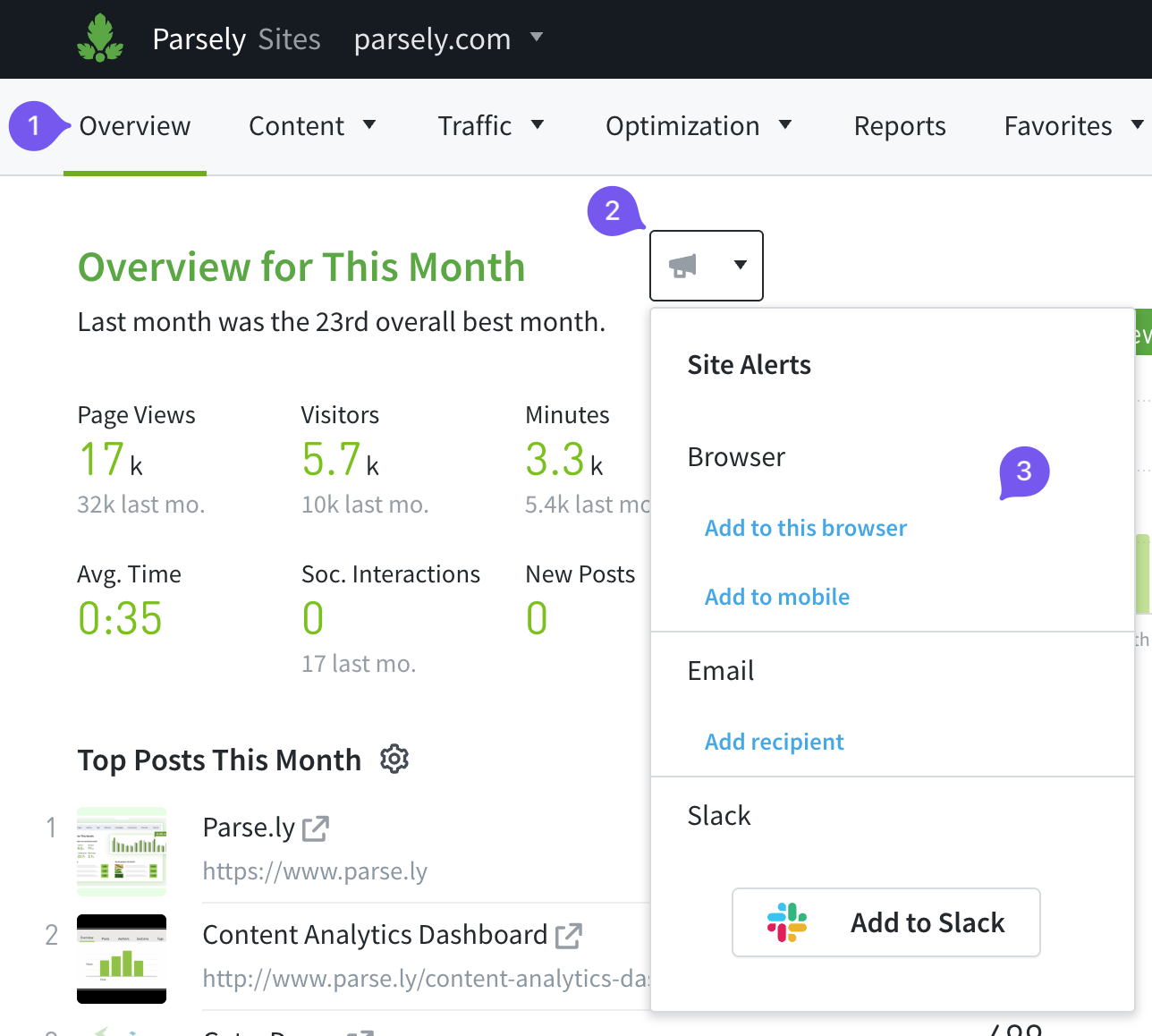
- Visit the Overview tab of the Parse.ly Dashboard.
- Click the megaphone icon to the right of the Sentiment Headline. Note: this megaphone icon will turn from gray to blue when there is an active alert.
- Choose where you’d like to receive the site alert: Desktop or mobile browser, email, or Slack.
Author and section alerts
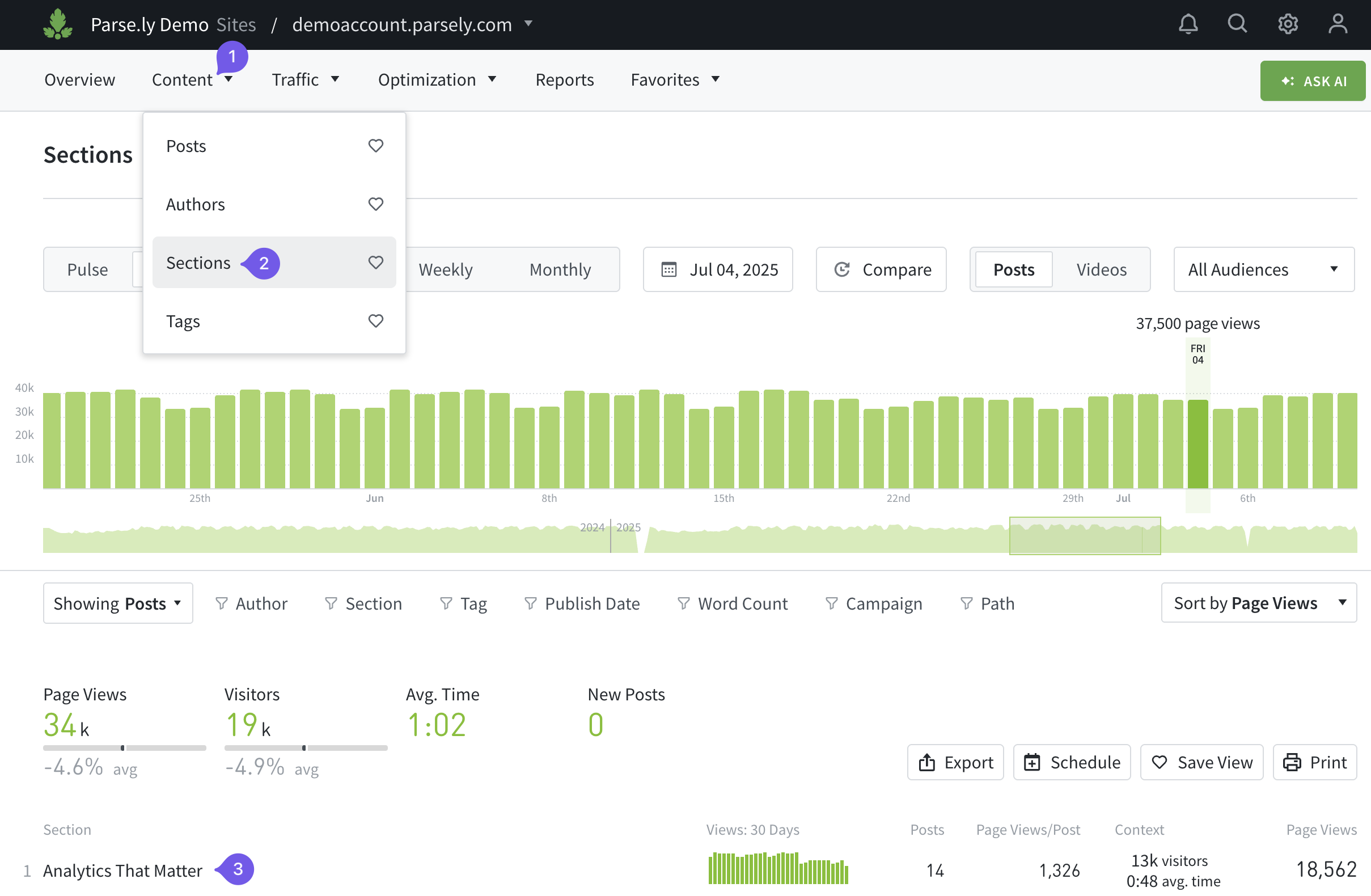
- Click the Content menu.
- Select the Authors or Sections page of the Dashboard.
- From the list of authors or sections, click the one you’d like to receive alerts for.
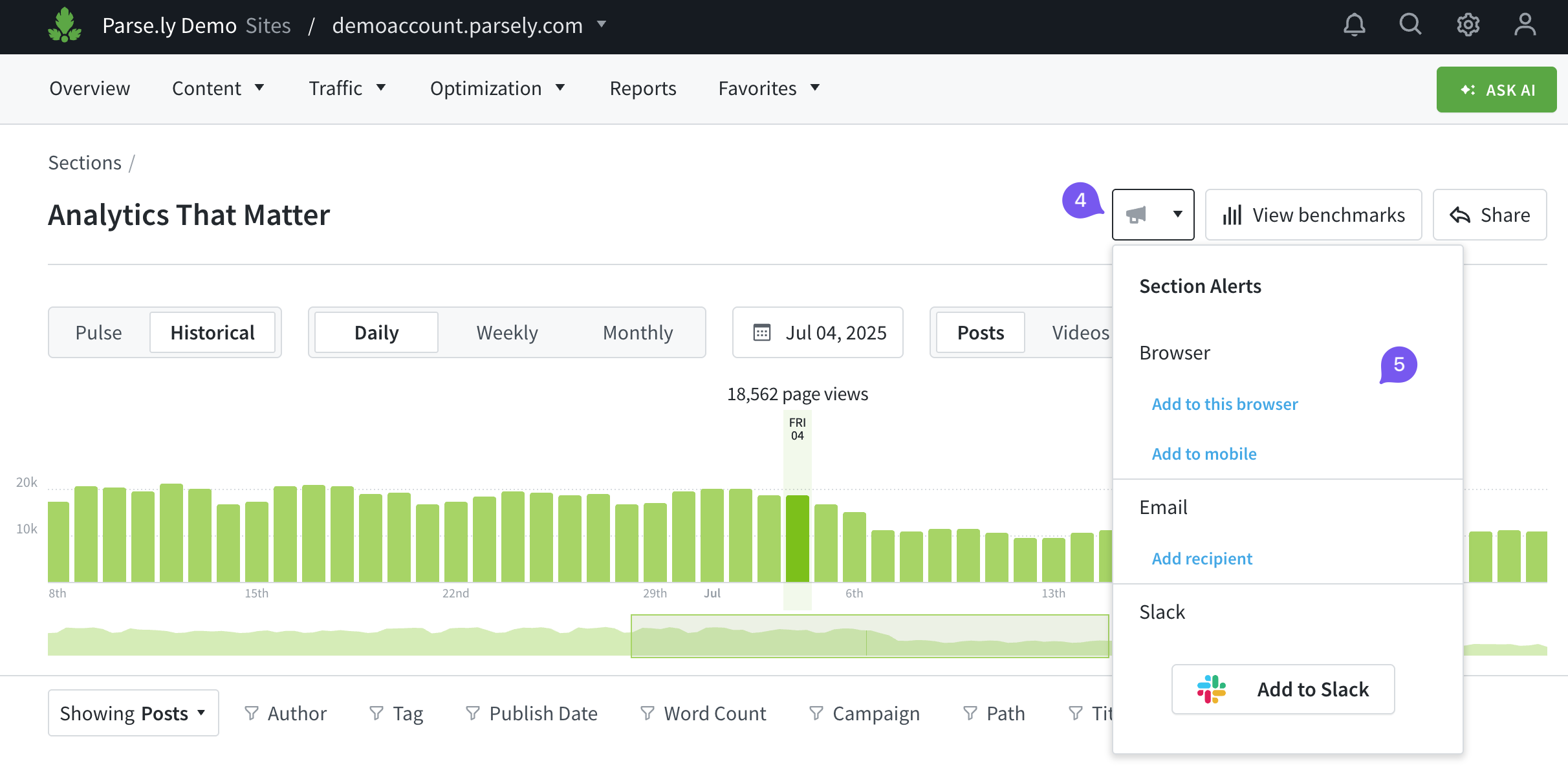
- From that author or section details page, click the megaphone icon at the top right of the tab.
- Choose where you’d like to receive alerts for posts by that author or under that section: desktop or mobile browser, email, or Slack.
Active alerts and alert history
The Alerts page displays currently active alert subscriptions, as well as the history of alerts.
- Click the Alerts and Notifications bell icon 🔔. If you have alerts, the panel will list your alert history.
- Click Manage alerts to navigate to the Alerts page.
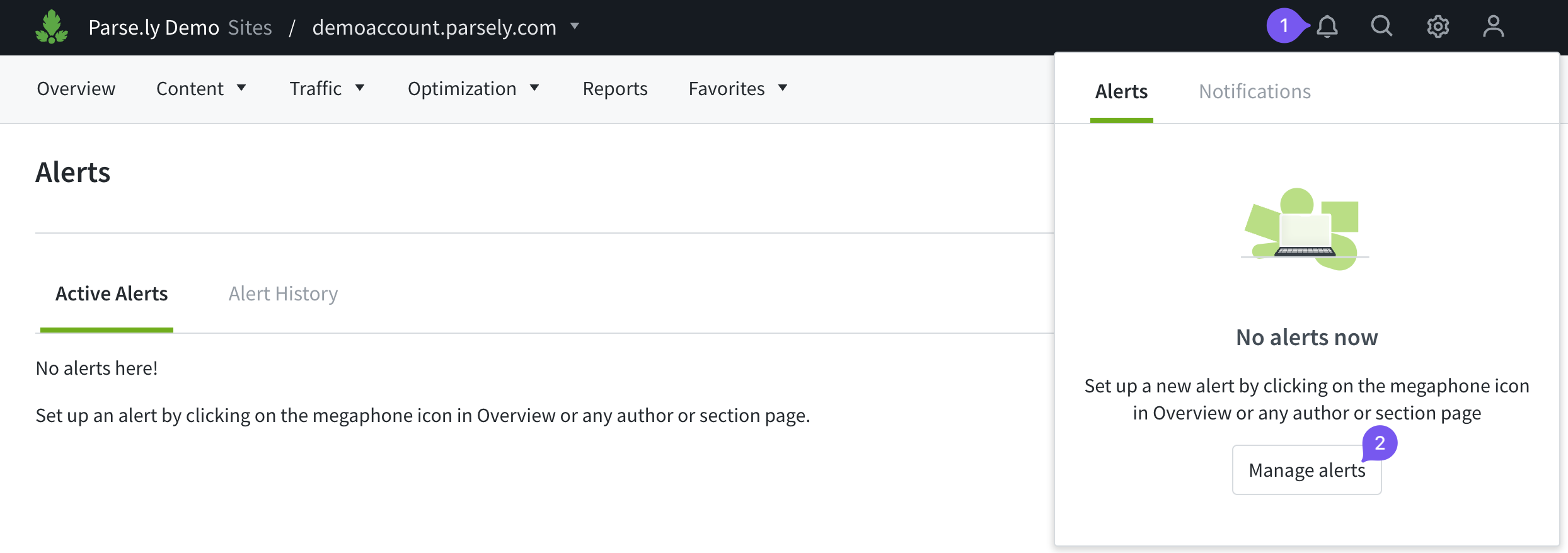
The “Alert History” tab lists posts that triggered past alerts. Click a post listed to open its details page.
Adjust alert thresholds
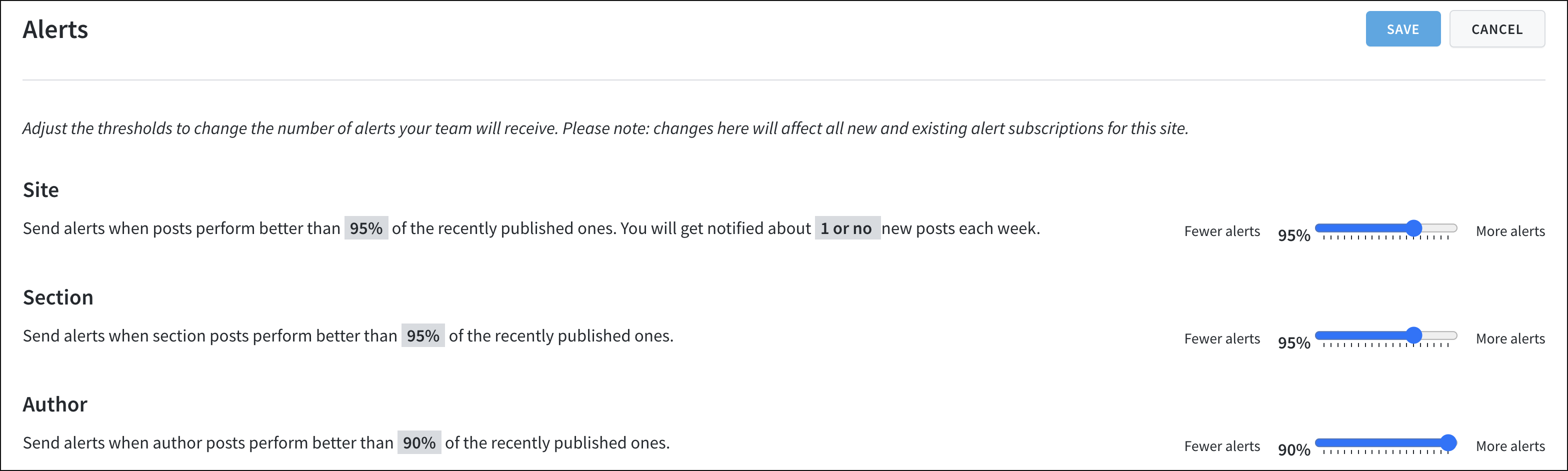
Admins can adjust the threshold for site, author, and section alerts from the Alerts page of the account menu — this affects the frequency of triggered alerts. Click the “Alert Settings” button:

Default threshold settings are:
- Site: Alerts trigger when a post’s page views per minute exceed 95 percent of the maximum page views per minute of all posts published on the site in the past 90 days.
- Section: Alerts trigger when a post’s page views per minute exceed 95 percent of the maximum page views per minute of posts published in that section over the past 90 days.
- Author: Alerts trigger when a post’s page views per minute exceeds 90 percent of the maximum page views per minute of posts published by that author over the past 90 days.
Note
For sites with a high publishing volume (e.g., several hundred posts per day), Parse.ly recommends setting a higher threshold. For sites with a low publishing volume (e.g., 10 posts per week), set a lower threshold.
Unsubscribe from an alert
Open the Alerts page of the account menu, then click the “X” icon to the right of an active alert to unsubscribe from it.

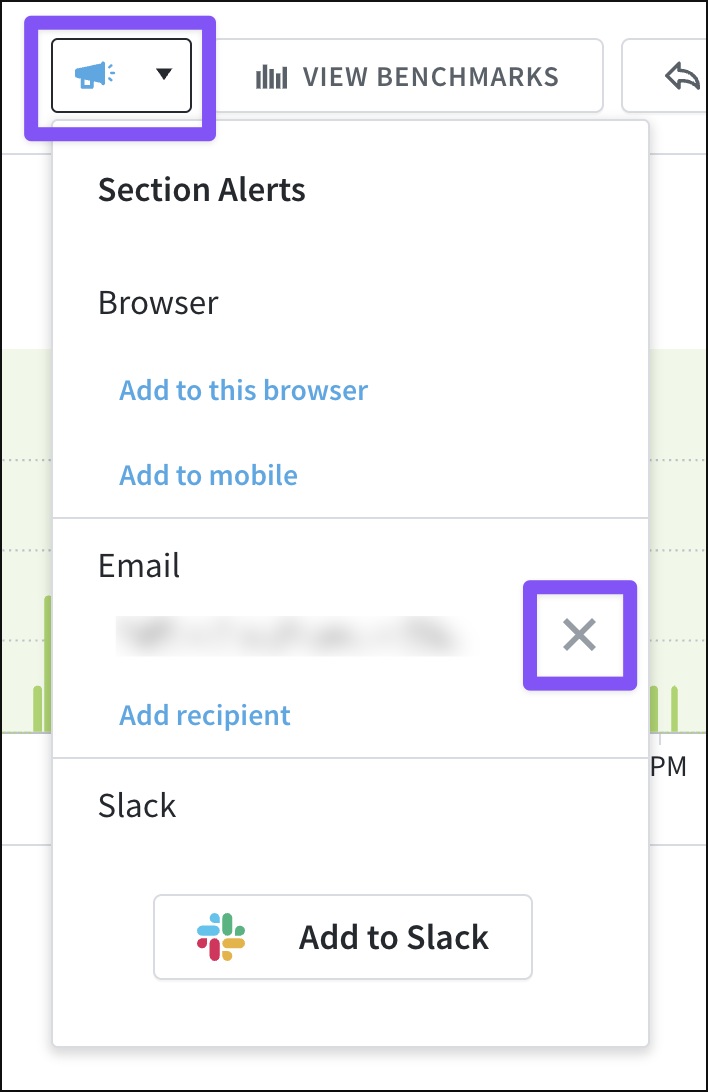
You can also unsubscribe from an alert by visiting Overview or the author or section details page. Click the megaphone icon, then the “X” icon next to the alert you’d like to unsubscribe from.
Last updated: October 16, 2025