Product update: March 8, 2021
Export conversions data (or get it in your inbox!)
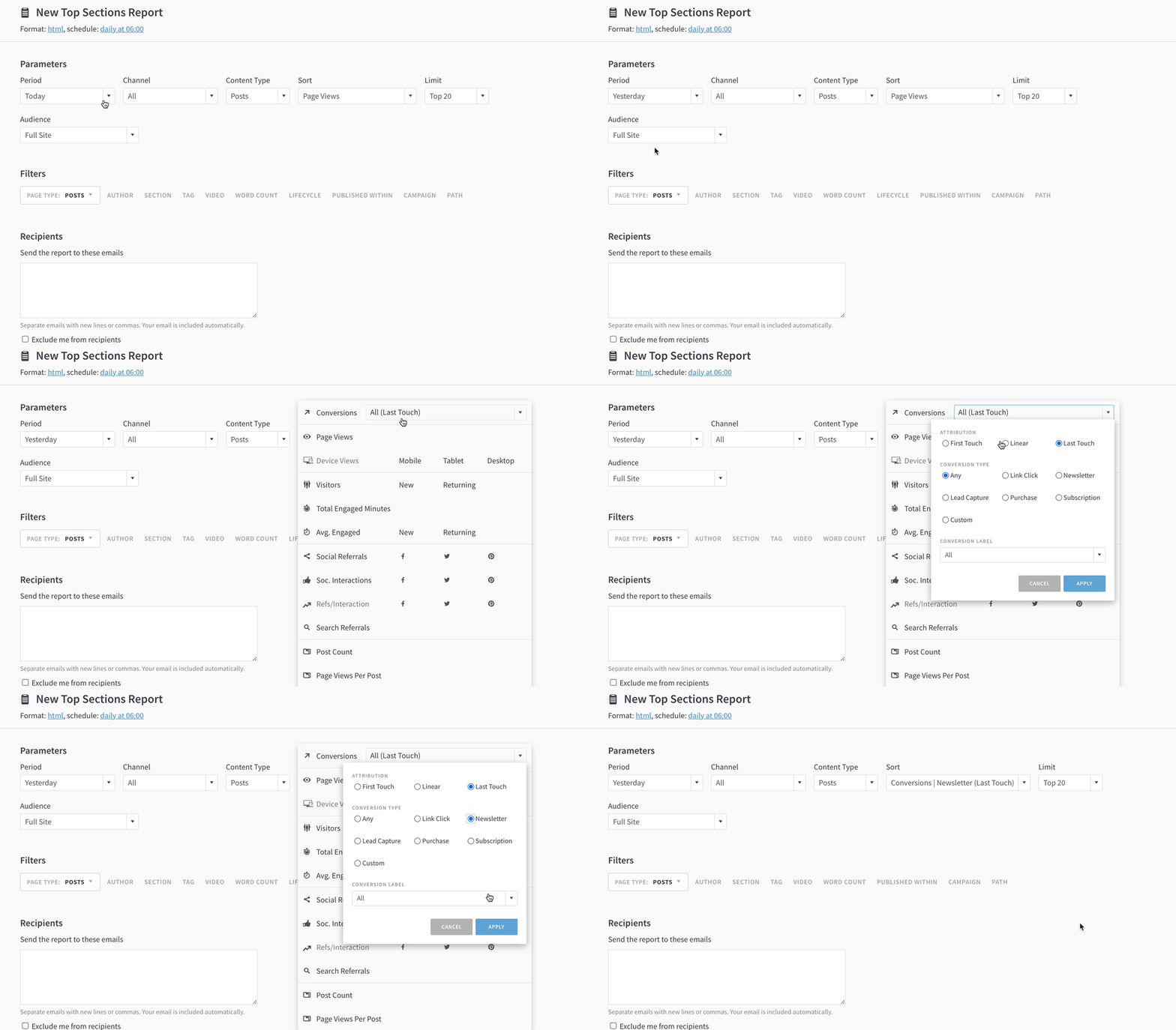
Now you can set up a conversions report for your whole team, or export conversions data to a spreadsheet.
When setting up most reports or exports, you’ll be able to select conversions as a metric.
- Go to Reports.
- Click Create Report.
- Select a report, such as Top Listings.
- Select an aspect, repeating cadence, and format.
- Click Continue.
- Select a historical time period (e.g. yesterday, this week).
- Select conversions from the Sort dropdown.
- Select any other filters or parameters.
- Click Save or Run.
Caveats:
- Conversions data is not supported in Stats Over Time, Evergreen Overview, or Audience Overview reports.
- Conversions data is not available in channels other than Website.
- Conversions data is not available for videos.
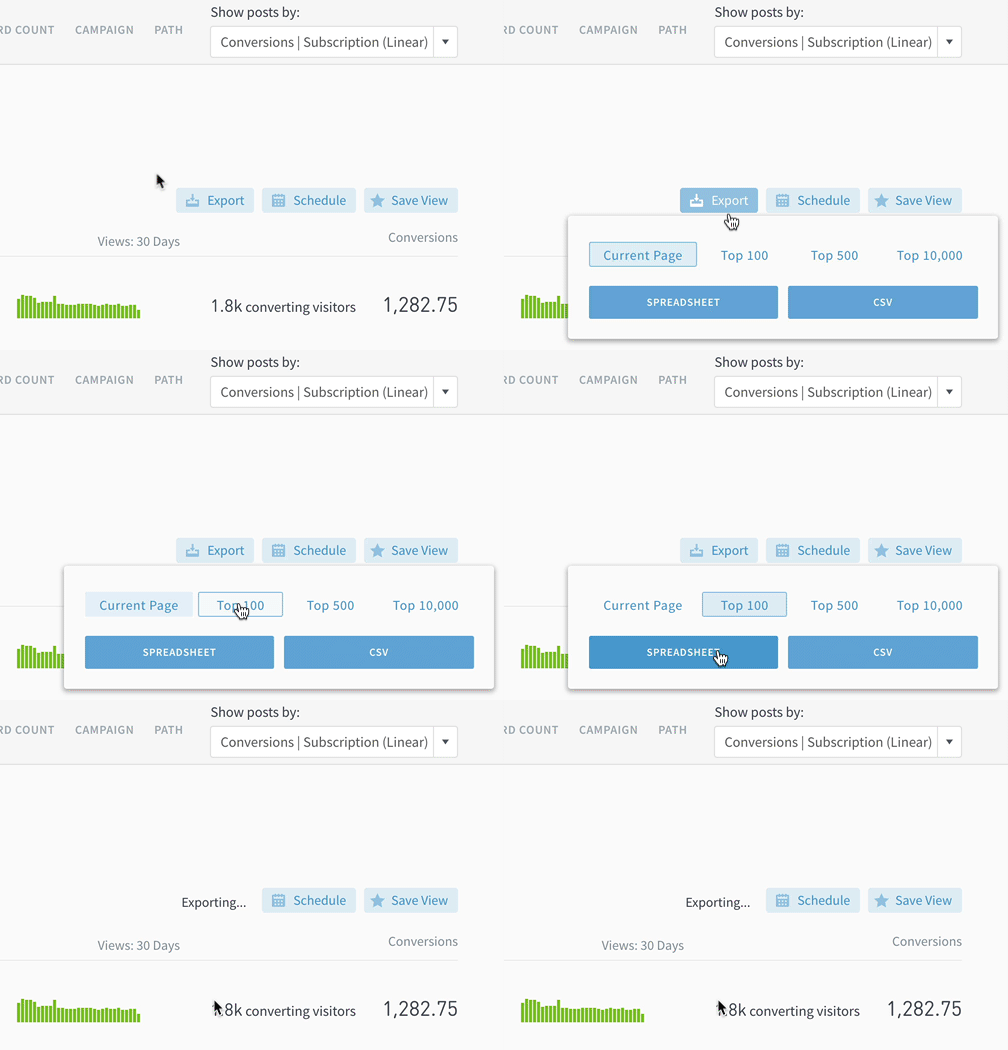
You can also export data or schedule reports from listings pages in the dashboard:
Easily select a conversion metric
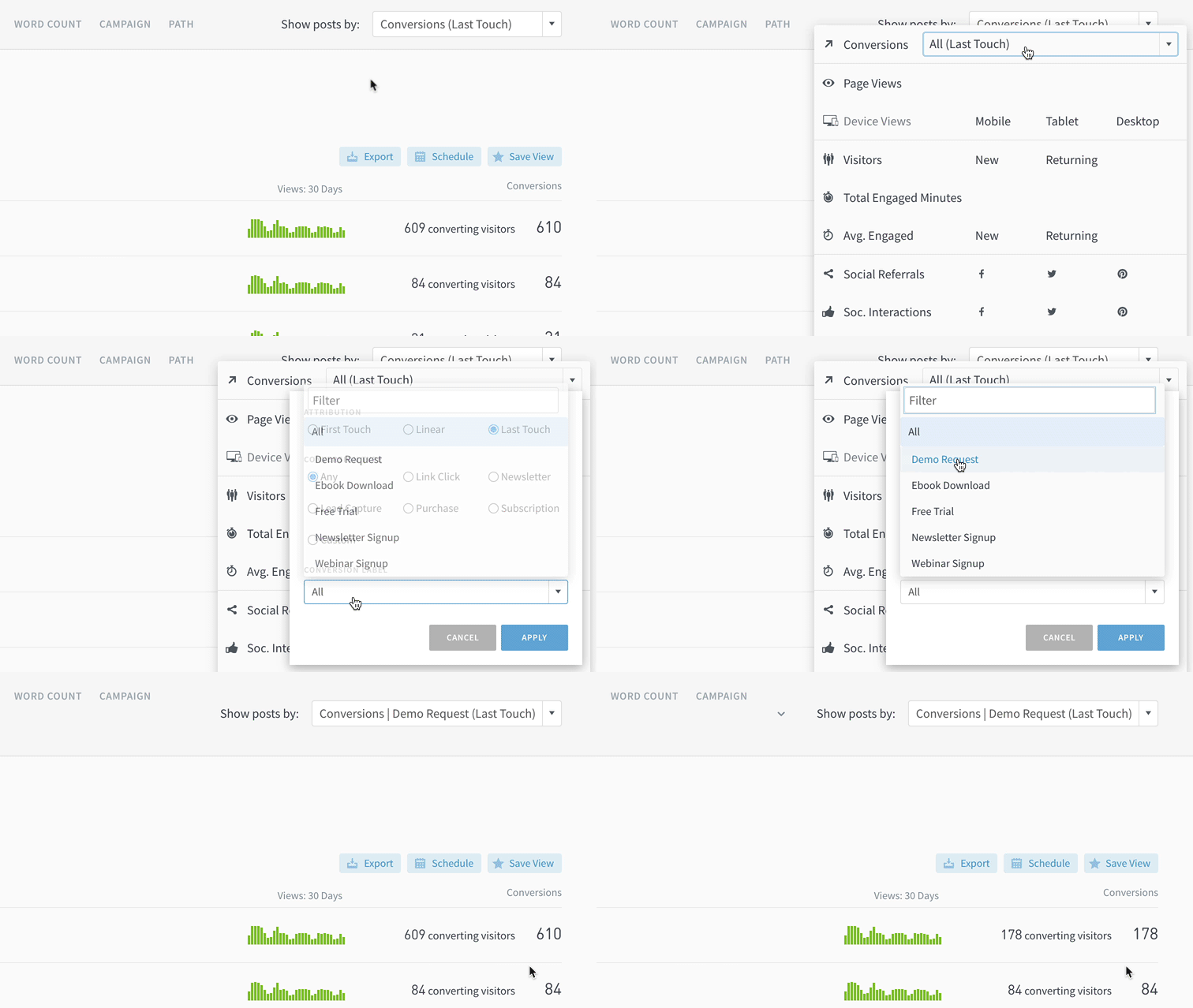
Get answers to “What drove the most subscriptions last month?” in fewer clicks.
We’ve made it easier to pick conversion metrics by condensing everything conversions into one part of the metrics dropdown.
Last updated: September 17, 2025