Update: New Syndication UI Elements
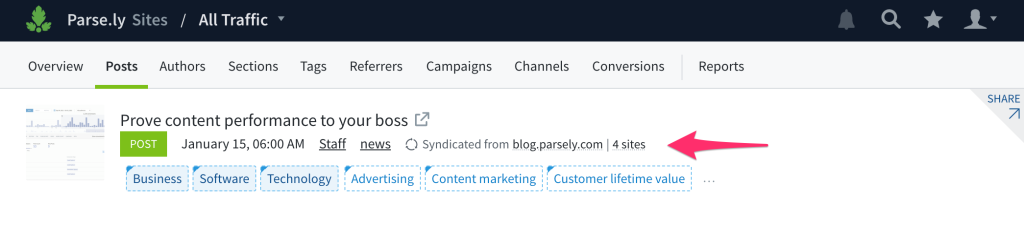
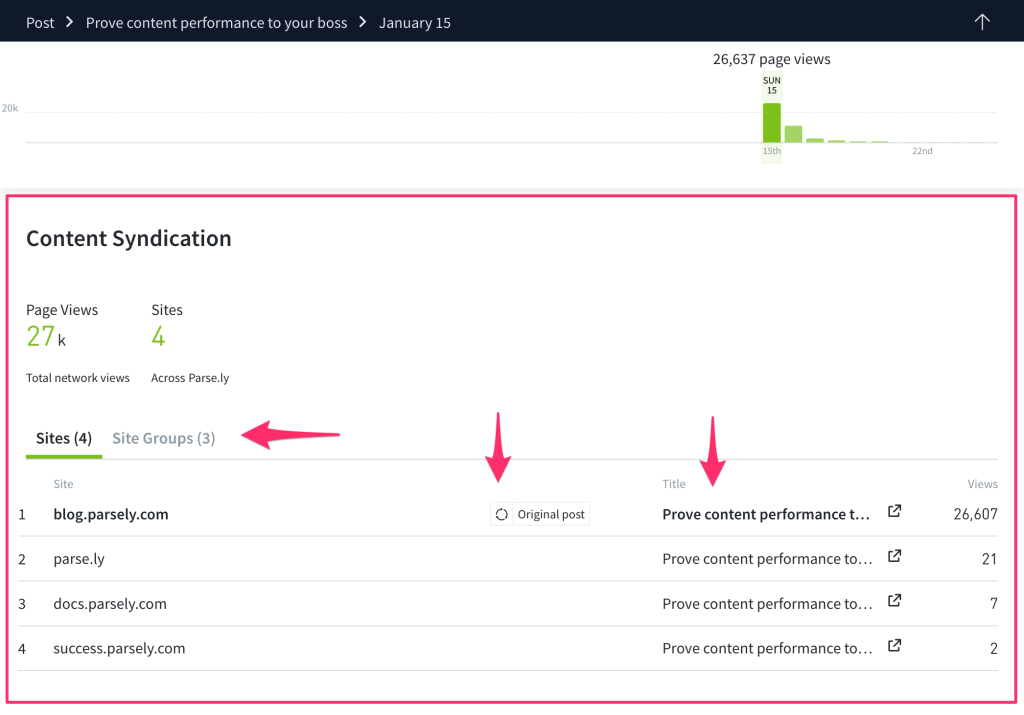
To make Syndication more informative and easier to navigate, we improved the current site list, added a site group tab, and updated the factoid area.
Learn more about Syndication here.
To make Syndication more informative and easier to navigate, we improved the current site list, added a site group tab, and updated the factoid area.
Learn more about Syndication here.
Thanks to a ton of cutting-edge work in our machine learning, now our content recommendations are more accurate, allowing you to deliver even more engaging and accurate experiences to your readers. This release is a new API endpoint, so it’s not visible in the Parse.ly dash, but accessible via calls to our API. Learn more here.
You can now export data on the Campaigns listing page.
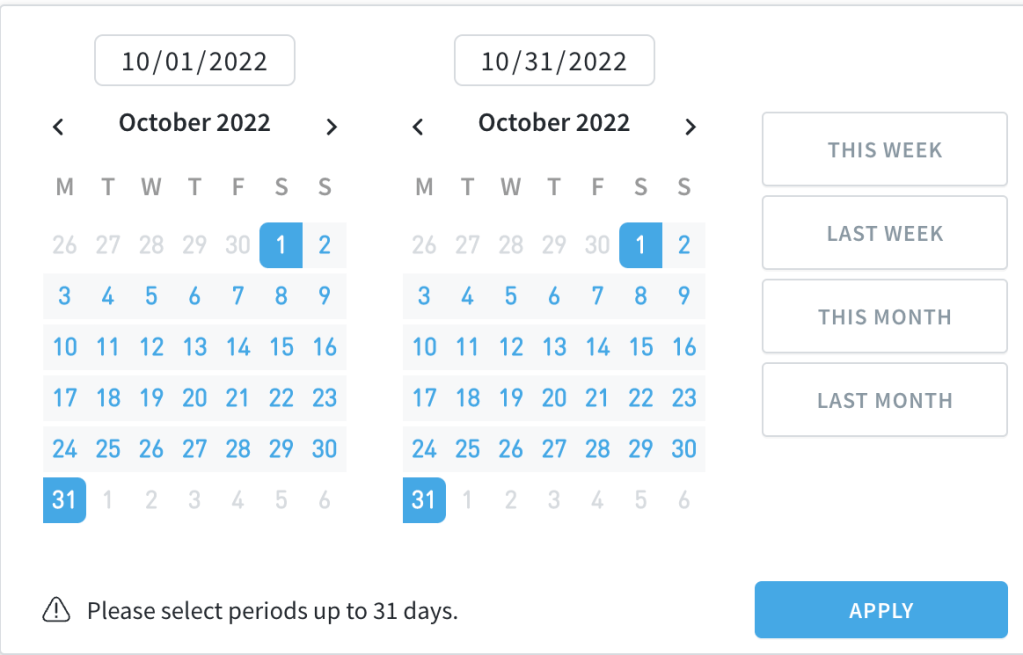
When choosing the publish date, you are now able to select any period of time, up to 31 days.
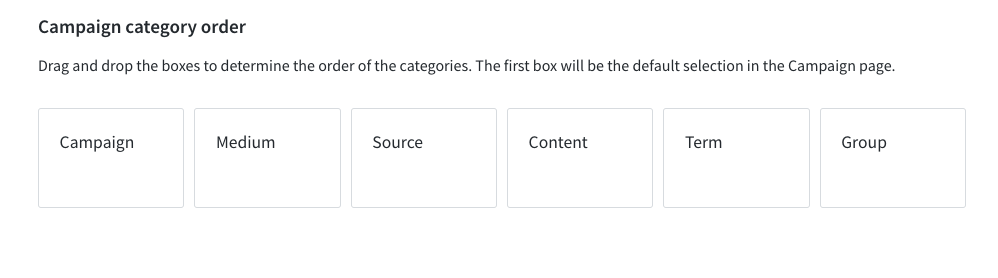
We now have a preference that allows you to set the order of the campaign elements displayed on your dashboard’s Campaigns page. From the Preferences page, simply drag and drop the boxes representing each campaign category to determine the order. Setting this preference will apply for all users.
Viewing campaign performance is now an option in the Overview screen. You can select any campaign parameter to display. Now you can see how your campaigns are performing when you first log into your Parse.ly dashboard.
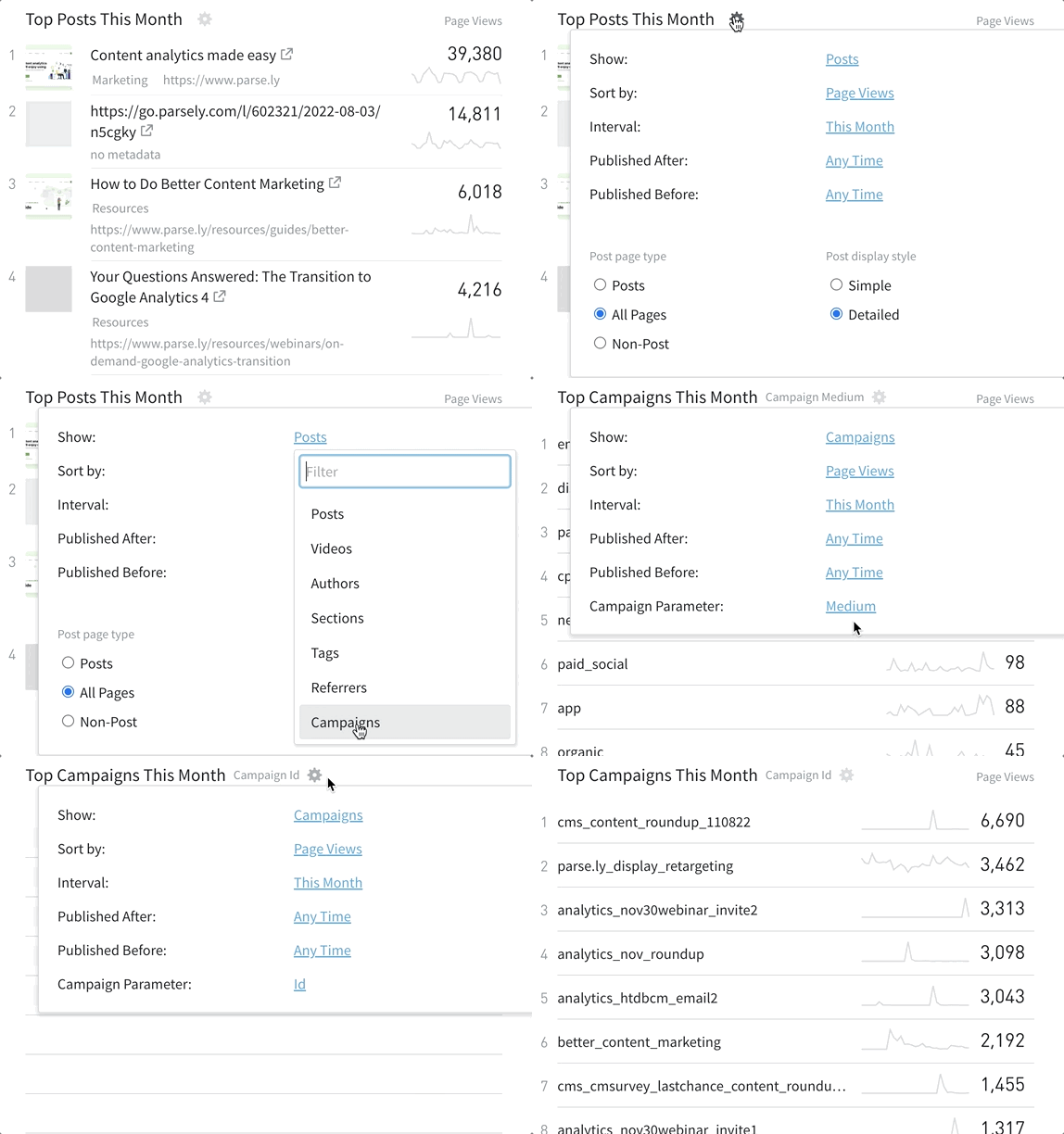
Create your own custom tag and/or referrer groups to keep track of the tags or referrers that matter most to you in one place. Watch the video below for a brief demonstration, or go to our Knowledge Base to read more about Tag Groups and Referrer Groups.
Ever wonder how content performance compares from one time period to another? With comparison mode, you can see the “before and after” results of your work directly in Parse.ly. Learn more in our Knowledge Base, or watch the video below for more details on where to find comparison mode, and how to use it!
VIDEO
In order to get better at anything, you need to understand what works. You also need to understand what doesn’t work. Being able to systematically surface the projects that did not produce the results that were expected of them will help you refine your content strategies and achieve more.
The Bottom Listings report shows a list of potentially underperforming posts. It can be repeated (weekly, daily, monthly) or generated once, in either HTML format or PDF format, which is the same as any other report in the Parse.ly dashboard.
Check out this video to see an example of creating a Bottom Listings report:
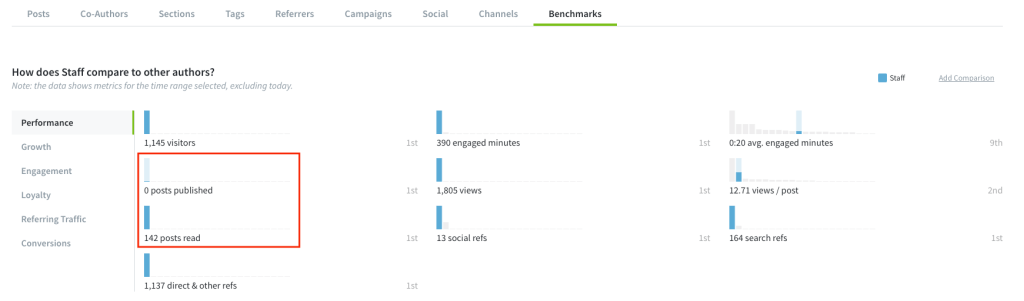
We added “posts published” to the list of metrics in the Benchmarks tab.
Ever wonder which posts or articles send the most people to another page on your site? Welcome to recirculation rate. Recirculation rate is the percent of page views from one post that went to another internal post on your site.
When viewing Authors or Sections in historical mode, Benchmarks comparisons are now available as a tab on those pages.
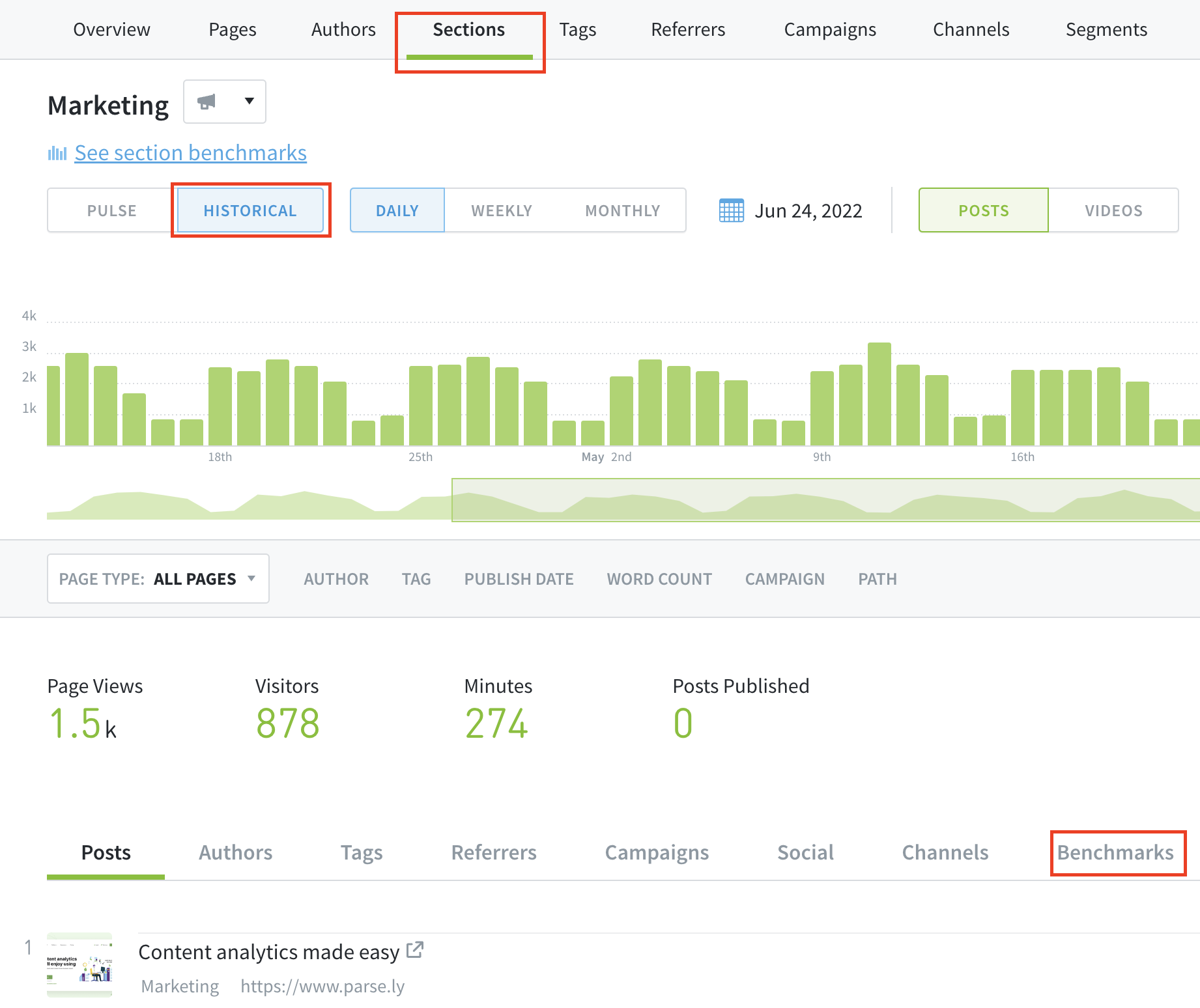
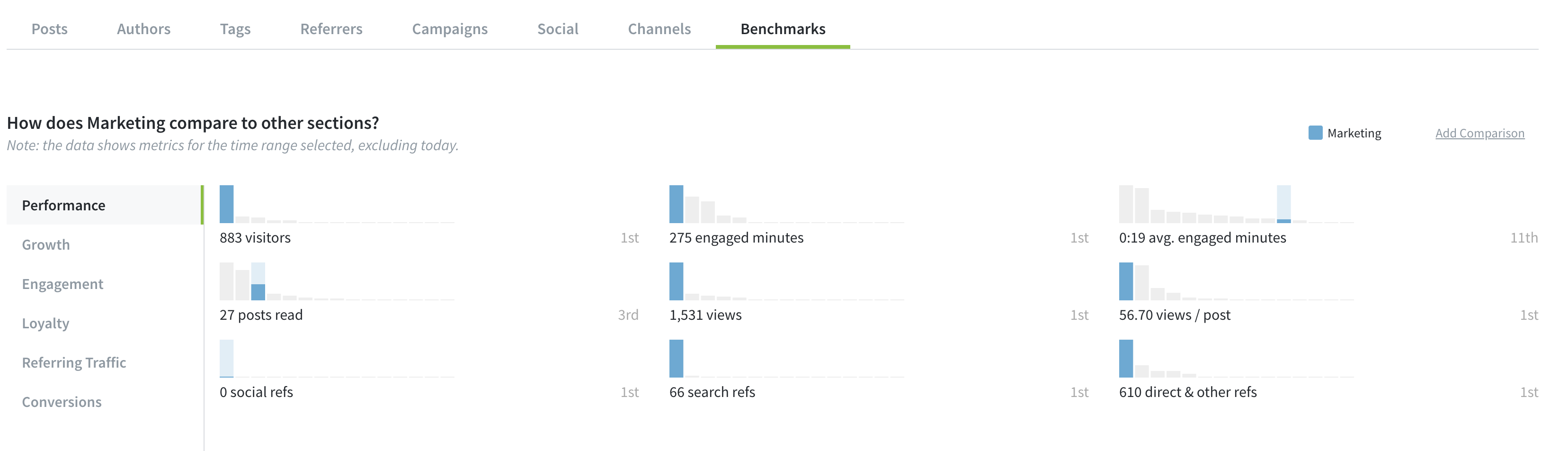
The full range of Benchmarks comparisons are still available by selecting a specific author, tag, or section, and clicking “see benchmarks” at the top of the page.
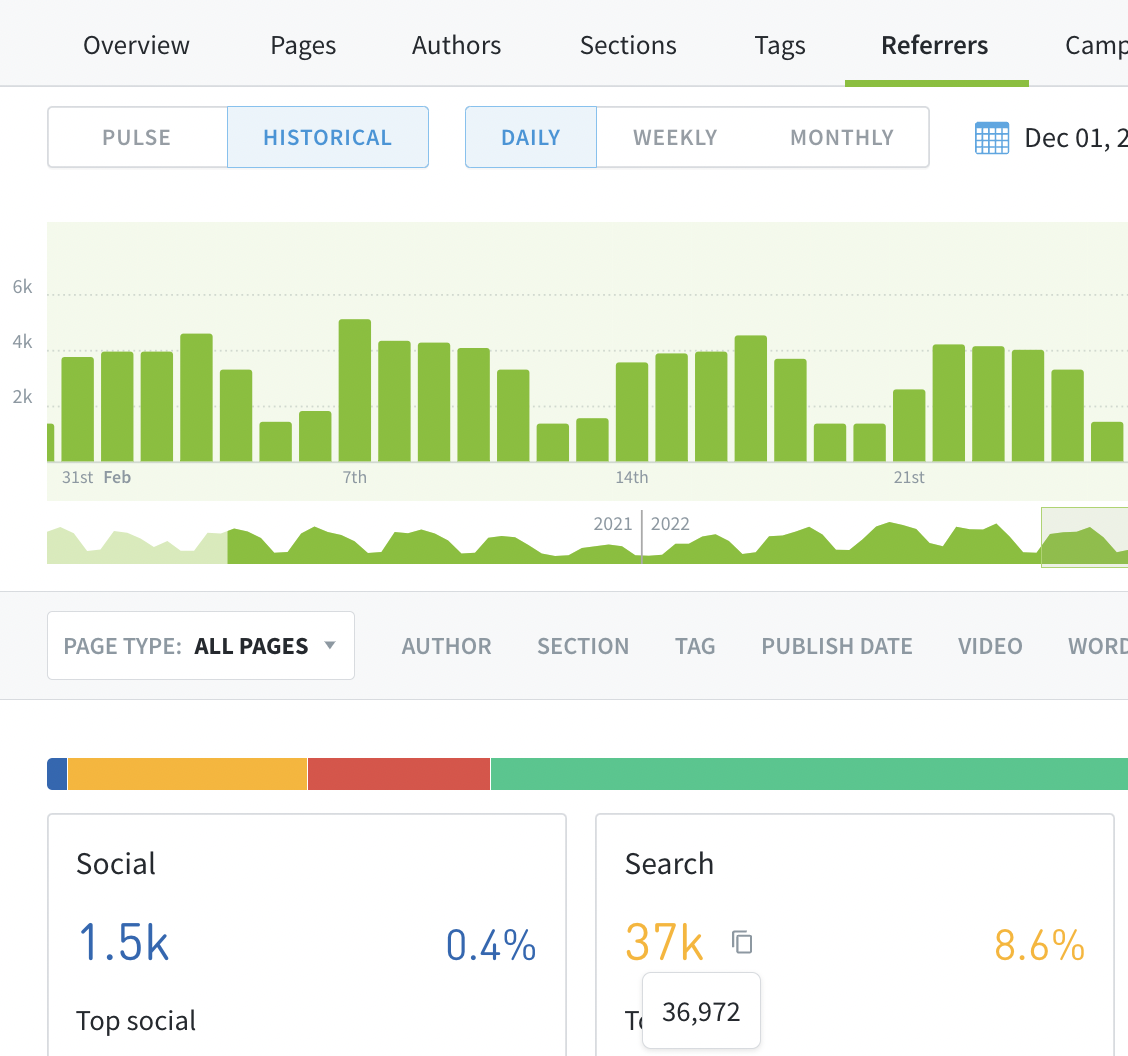
When you’re on the Referrers tab, you can now hover over summary data for the different referrer categories and copy the data to your clipboard.
Last updated: November 12, 2025